
Stripe Payments FAQs
eStoreware Stripe Payments for nopCommerce
Answers by setup section with screenshot examples: configuration, customer checkout, payment lifecycle, recurring payments, webhooks, installation, licensing, and go-live.
Section 1: Admin Configuration & Checkout Behavior
Configuration, checkout mode, transaction mode, 3D Secure, saved cards, sandbox/live mode, and multi-store settings.
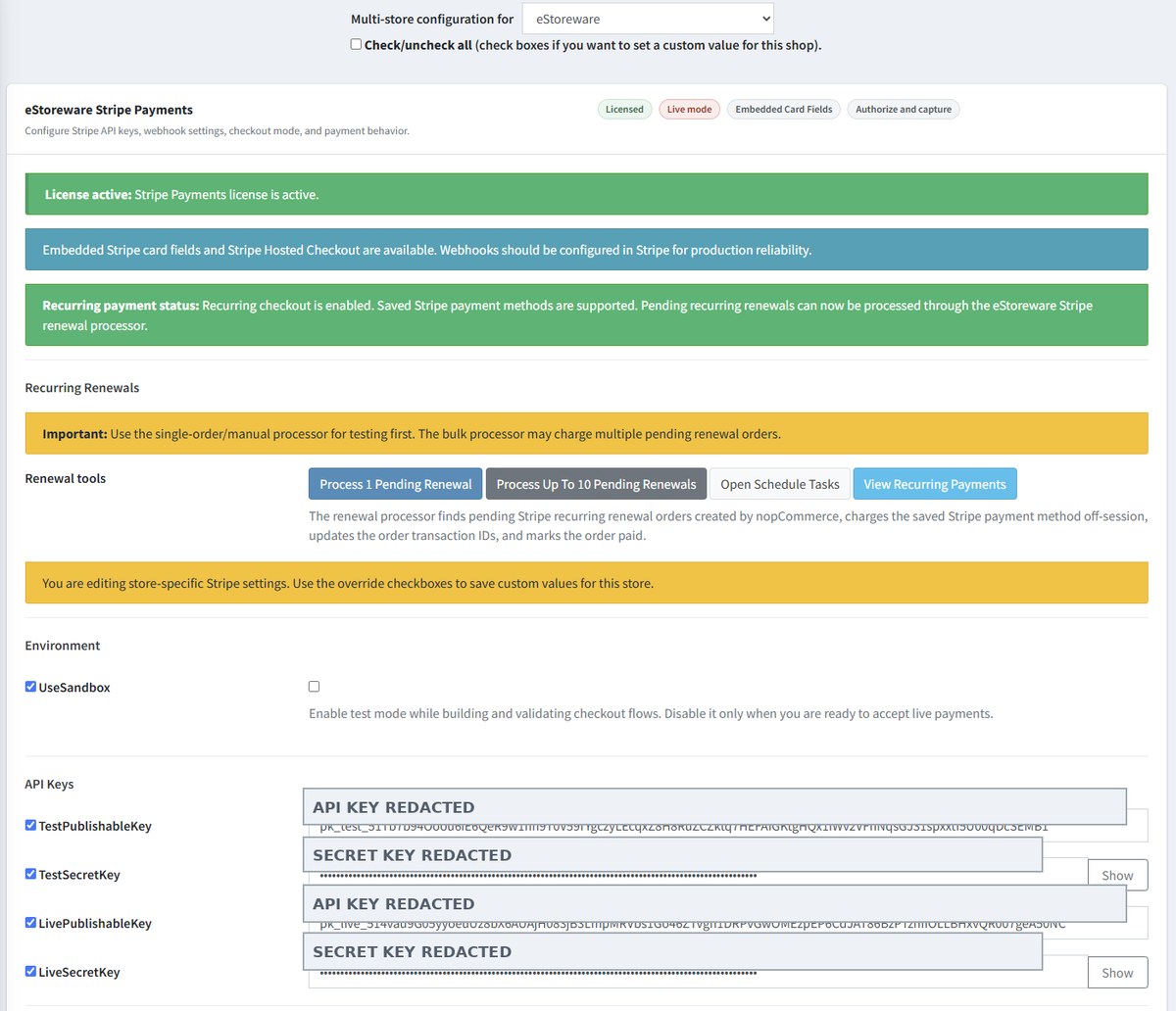
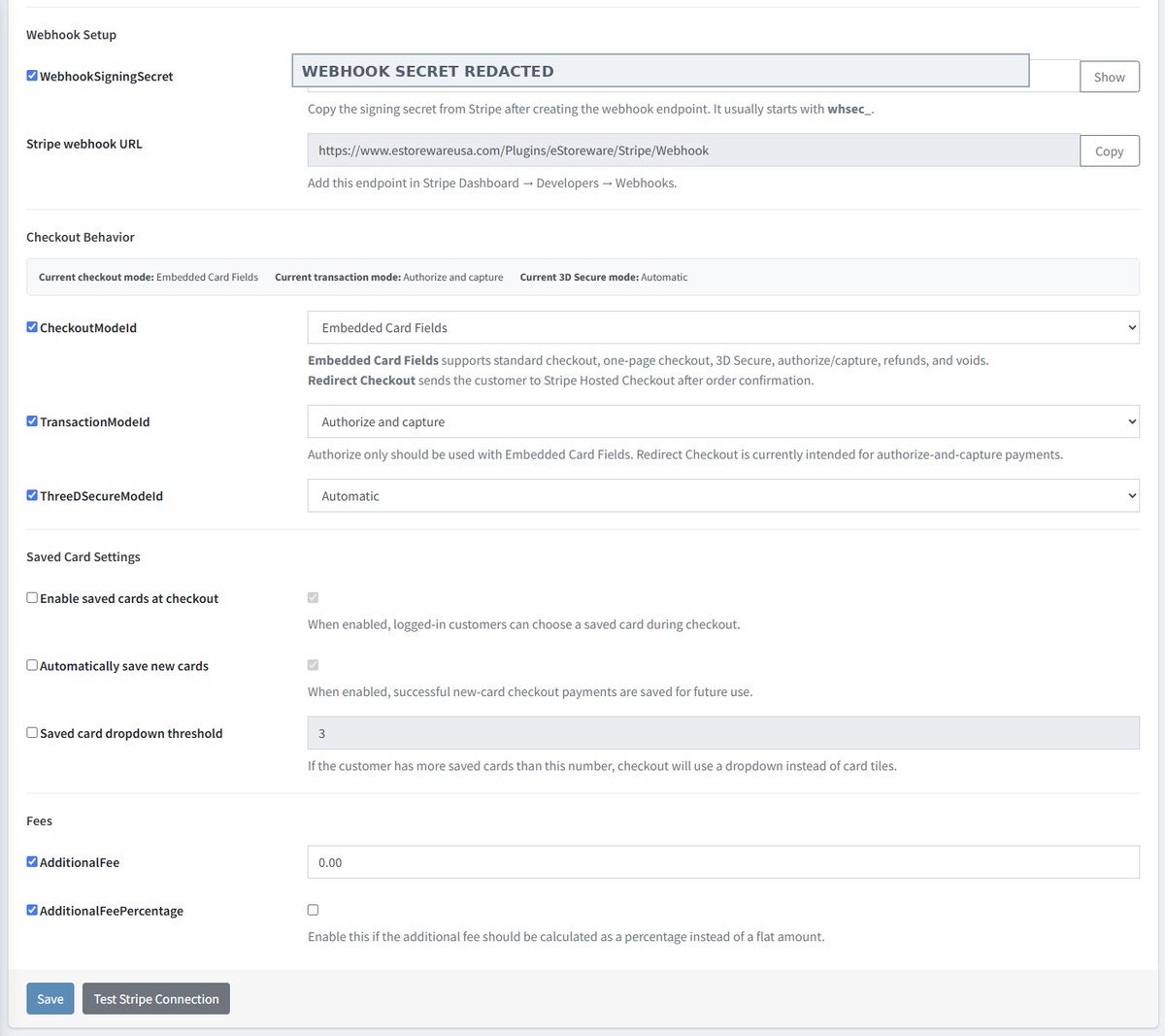
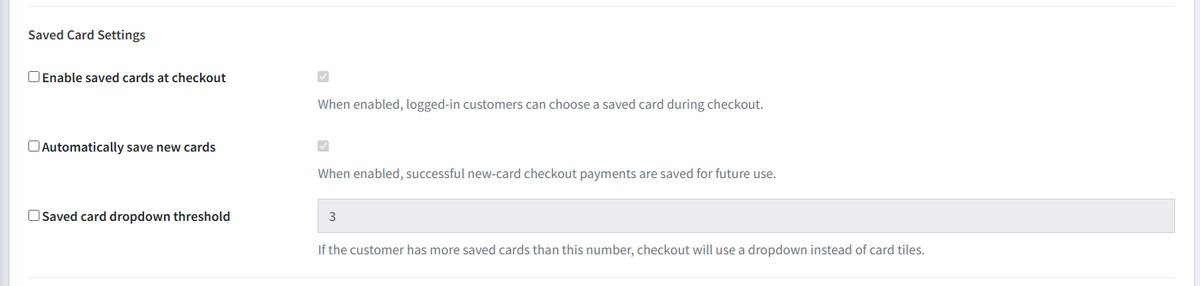
Does the plugin support both Stripe test mode and live mode?
Yes. eStoreware Stripe Payments includes sandbox/test mode for validating checkout before accepting live payments. When testing is complete, sandbox mode can be disabled and the store can use live Stripe API keys.
Can Stripe settings be different per nopCommerce store?
Yes. The plugin supports nopCommerce store-scope configuration. Each store can use its own Stripe keys, webhook signing secret, checkout mode, saved-card behavior, and related payment settings when override settings are enabled.
What checkout modes are available?
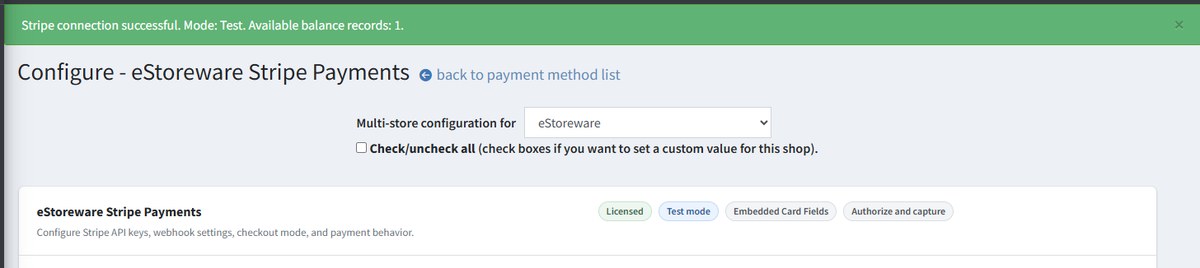
The plugin supports Embedded Card Fields and Stripe Hosted Checkout. Embedded Card Fields keep the customer inside nopCommerce checkout. Hosted Checkout redirects the customer to Stripe’s secure hosted payment page.
Does the plugin support authorize-only payments?
Yes. The transaction mode can be configured for authorize-only. This authorizes the customer’s payment method during checkout without capturing the funds until the admin captures the payment later.
What 3D Secure options are available?
The plugin supports configurable 3D Secure behavior, including automatic handling, requesting authentication when supported, or forcing a challenge when possible.
Can saved-card checkout be enabled or disabled?
Yes. Store owners can enable saved cards for logged-in customers, decide whether successful new-card payments should be saved automatically, and control how saved cards are displayed at checkout.
Section 2: Customer Checkout, Saved Cards & Recovery
Customer payment selection, saved cards, My Account payment methods, Hosted Checkout recovery, and 3D Secure messages.
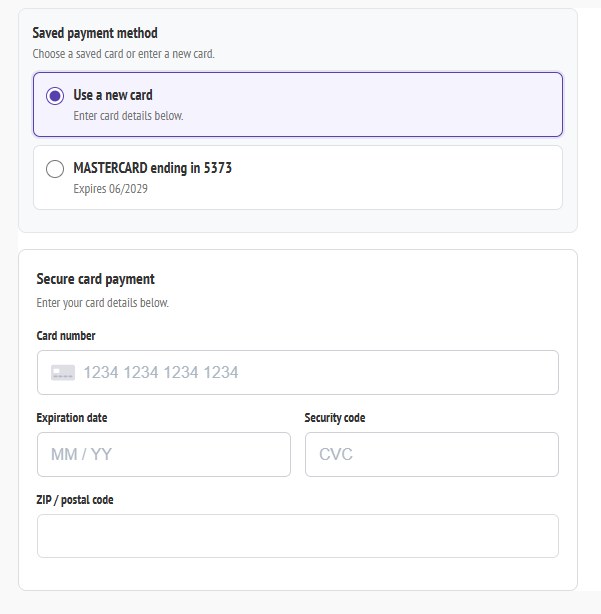
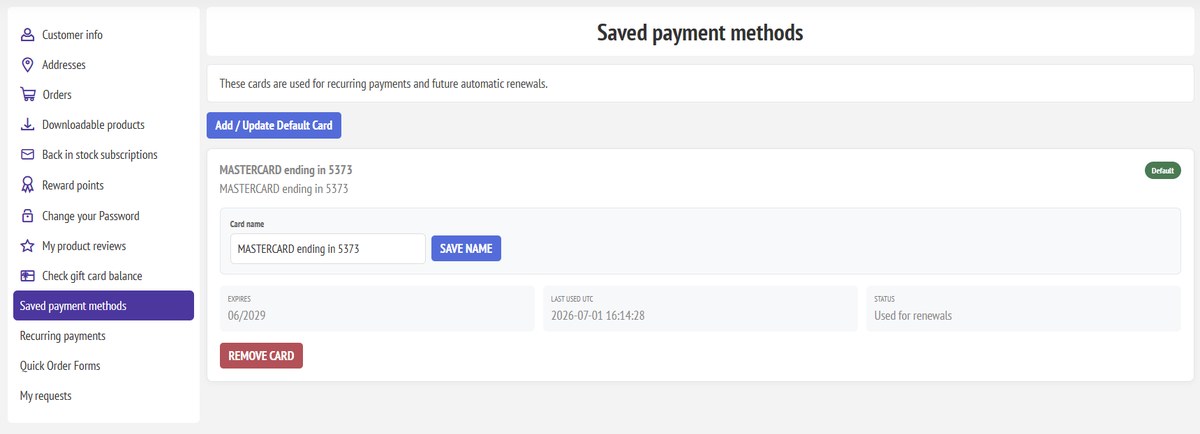
Can customers use saved cards during checkout?
Yes. Logged-in customers can select a saved Stripe payment method at checkout when saved cards are enabled.
Can customers still enter a new card?
Yes. Customers can choose a saved card or select Use a new card to enter different card details.
What happens when a customer has many saved cards?
The plugin can display saved cards in a dropdown after the configured threshold. This keeps the checkout page clean when customers have multiple saved payment methods.
Can customers manage saved payment methods from My Account?
Yes. Customers can access saved payment methods from My Account and manage their stored Stripe payment methods, depending on the features enabled by the store.
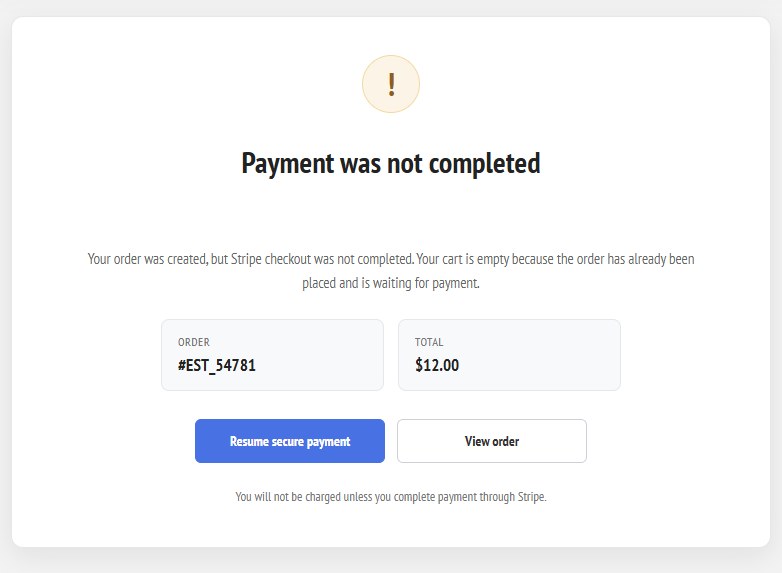
What happens if a customer leaves Stripe Hosted Checkout before paying?
If the order was already created in nopCommerce, the plugin can show a payment recovery page. The customer can resume secure payment instead of creating a duplicate order.
What happens if 3D Secure authentication fails?
The customer receives a clear message explaining that authentication could not be completed. They can choose another saved card or enter a new payment method and try again.
Section 3: Payment Lifecycle & Admin Payment Actions
PaymentIntent tracking, authorized payments, capture, void, refund, partial refund, order notes, and Stripe Dashboard visibility.
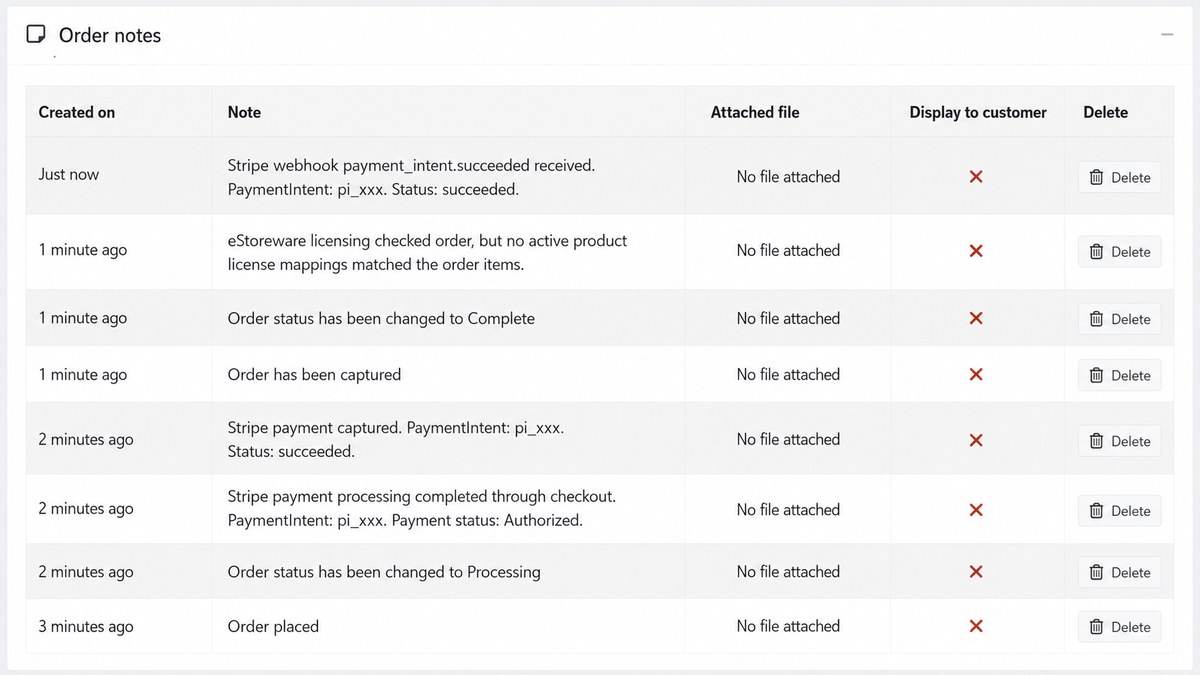
Does the plugin store Stripe PaymentIntent information with the order?
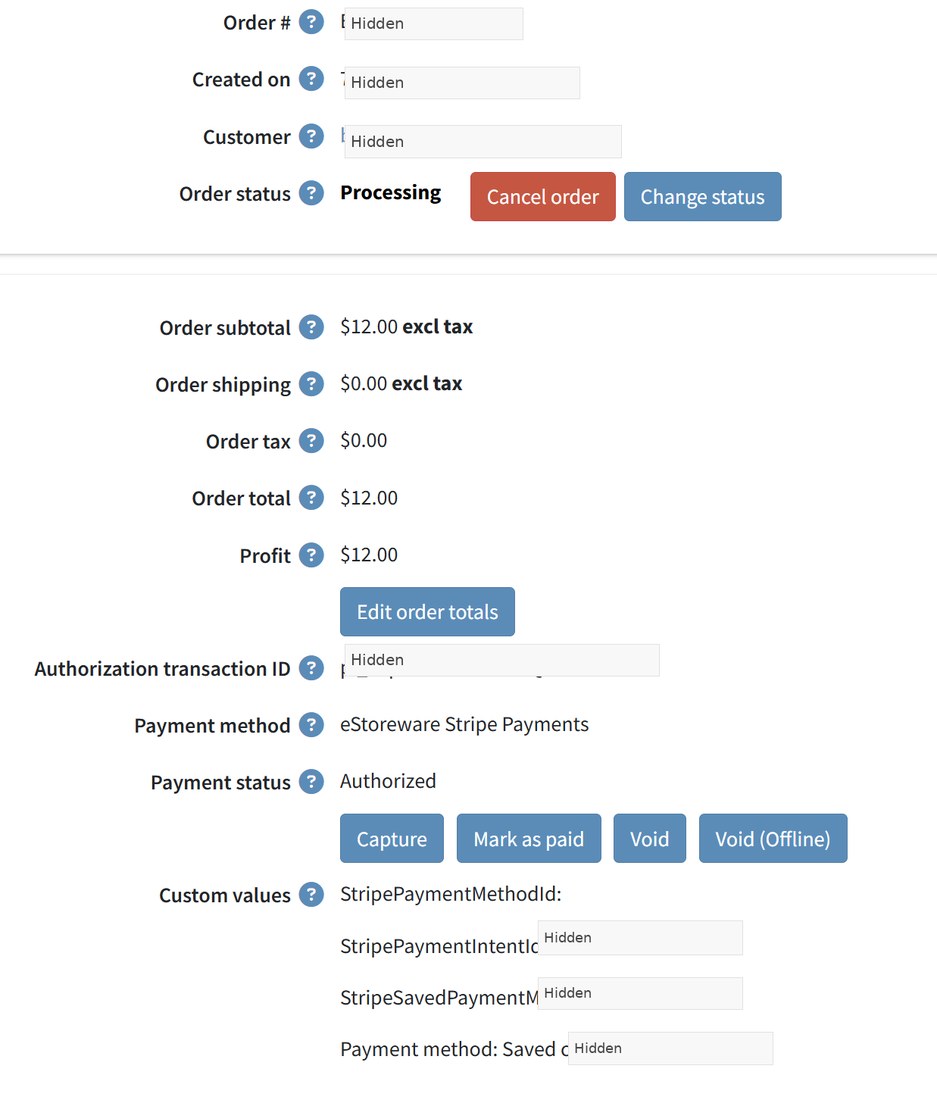
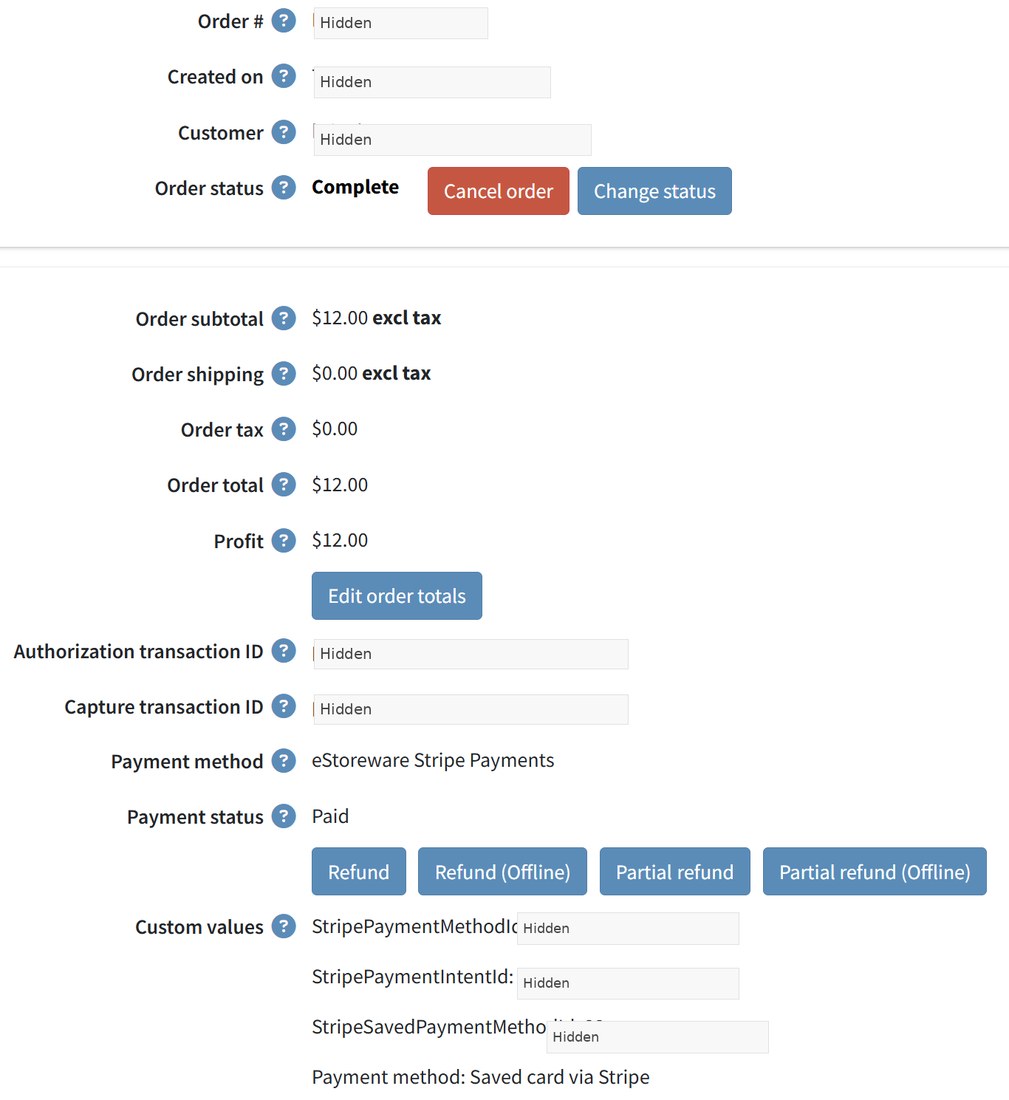
Yes. Stripe transaction references can be associated with the nopCommerce order for traceability. Public screenshots should redact PaymentIntent IDs and other Stripe identifiers.
What does Authorize Only mean?
Authorize Only means the customer’s card is authorized during checkout, but funds are not captured immediately. The merchant can capture or void the authorization later.
Can an authorized payment be captured from nopCommerce admin?
Yes. Authorized orders can show a Capture button so the admin can collect the authorized funds when ready.
Can an authorized payment be voided?
Yes. If the order should not be charged, the authorization can be voided from the admin order screen.
Does the plugin support partial refunds?
Yes. Captured payments can support refund and partial refund workflows from the nopCommerce admin order screen.
Do order notes show Stripe payment activity?
Yes. Order notes can show checkout processing, authorization, capture, webhook events, payment status changes, and order status changes.
Section 4: Recurring Payments & Renewal Management
Customer recurring pages, admin recurring dashboard, recurring details, default cards, pause/snooze, retry tools, readiness checks, and processing pending renewals.
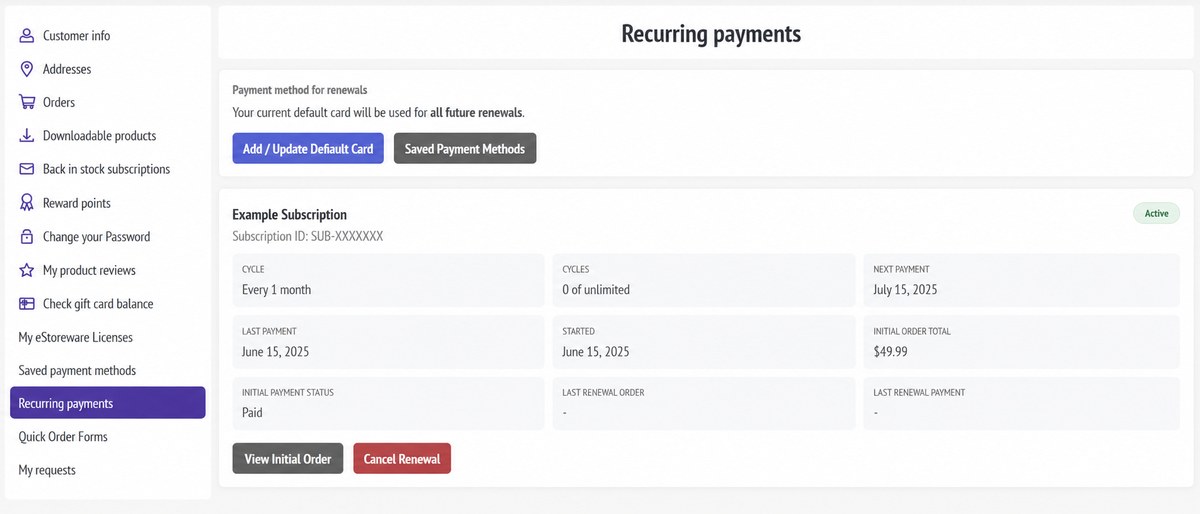
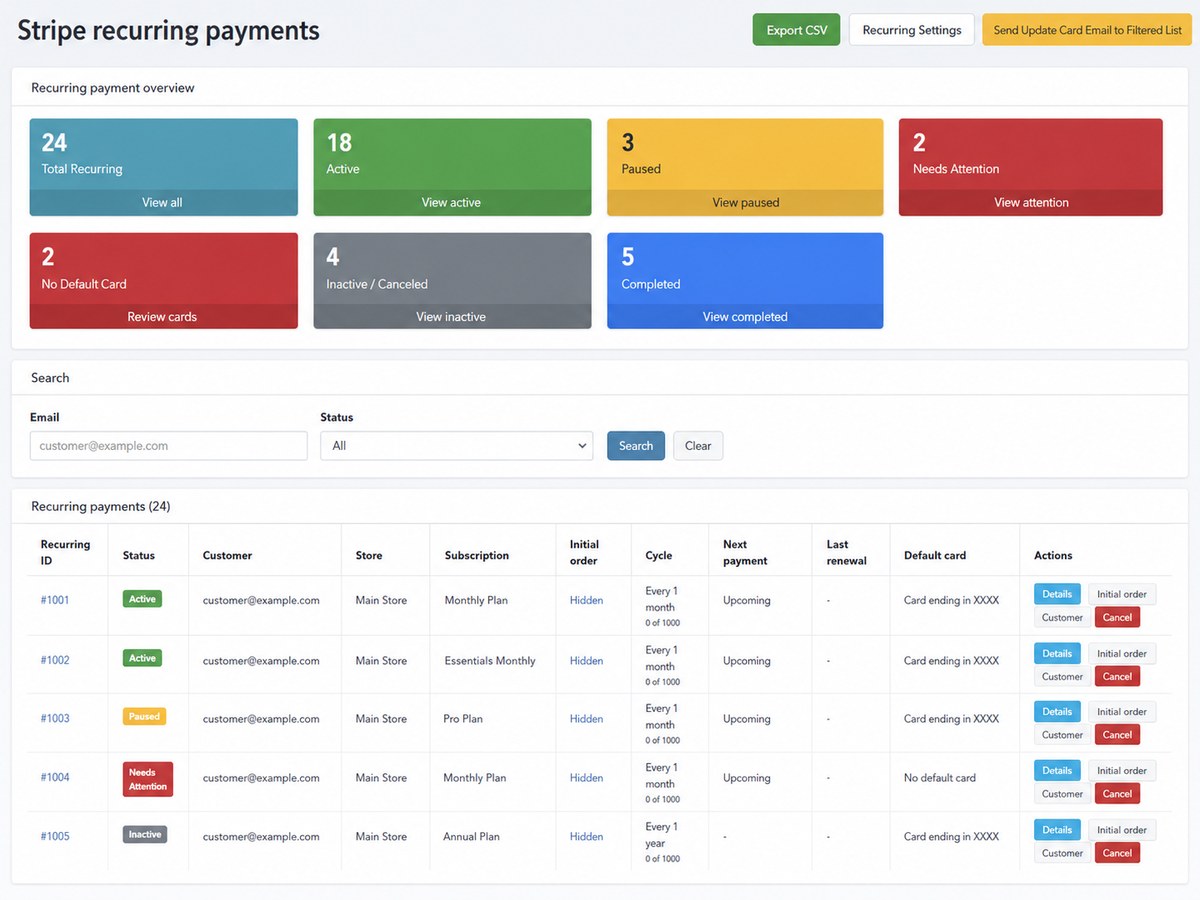
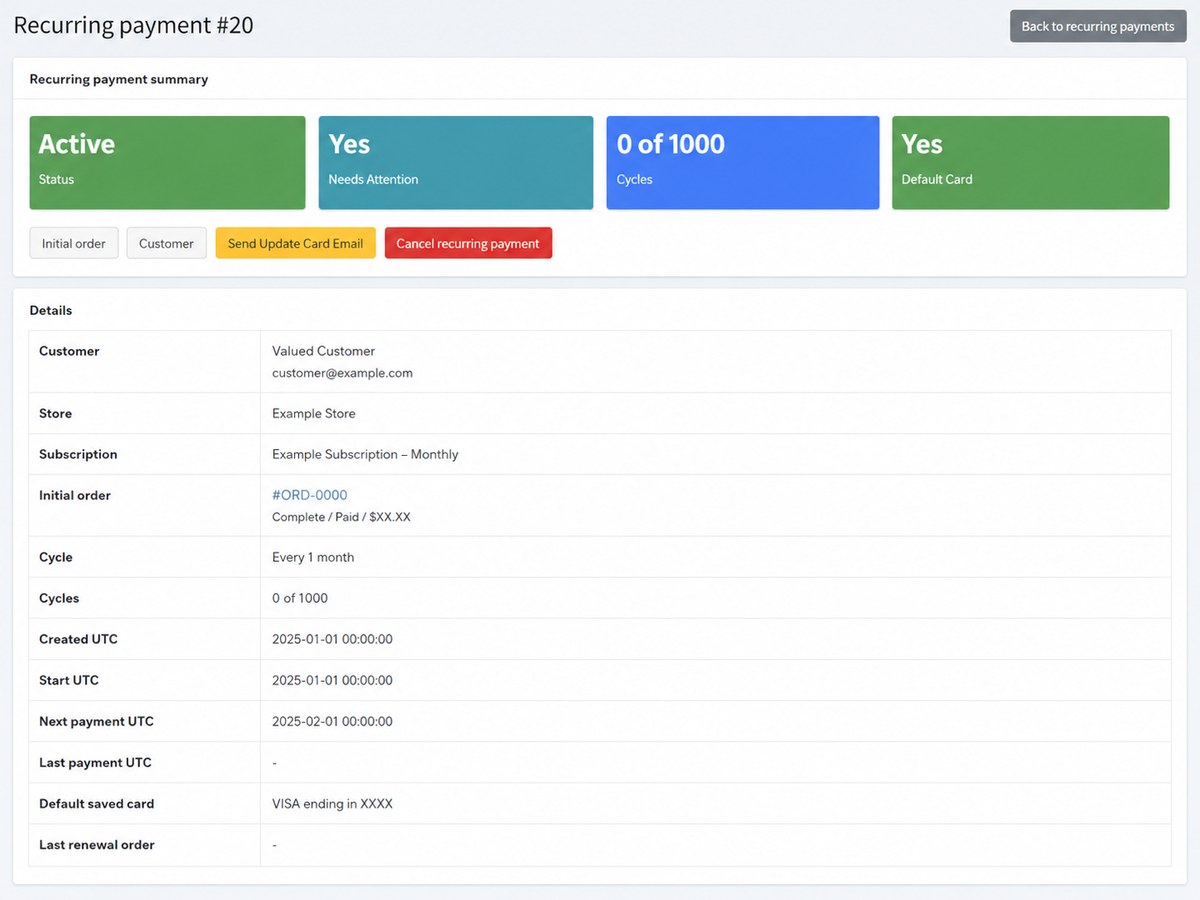
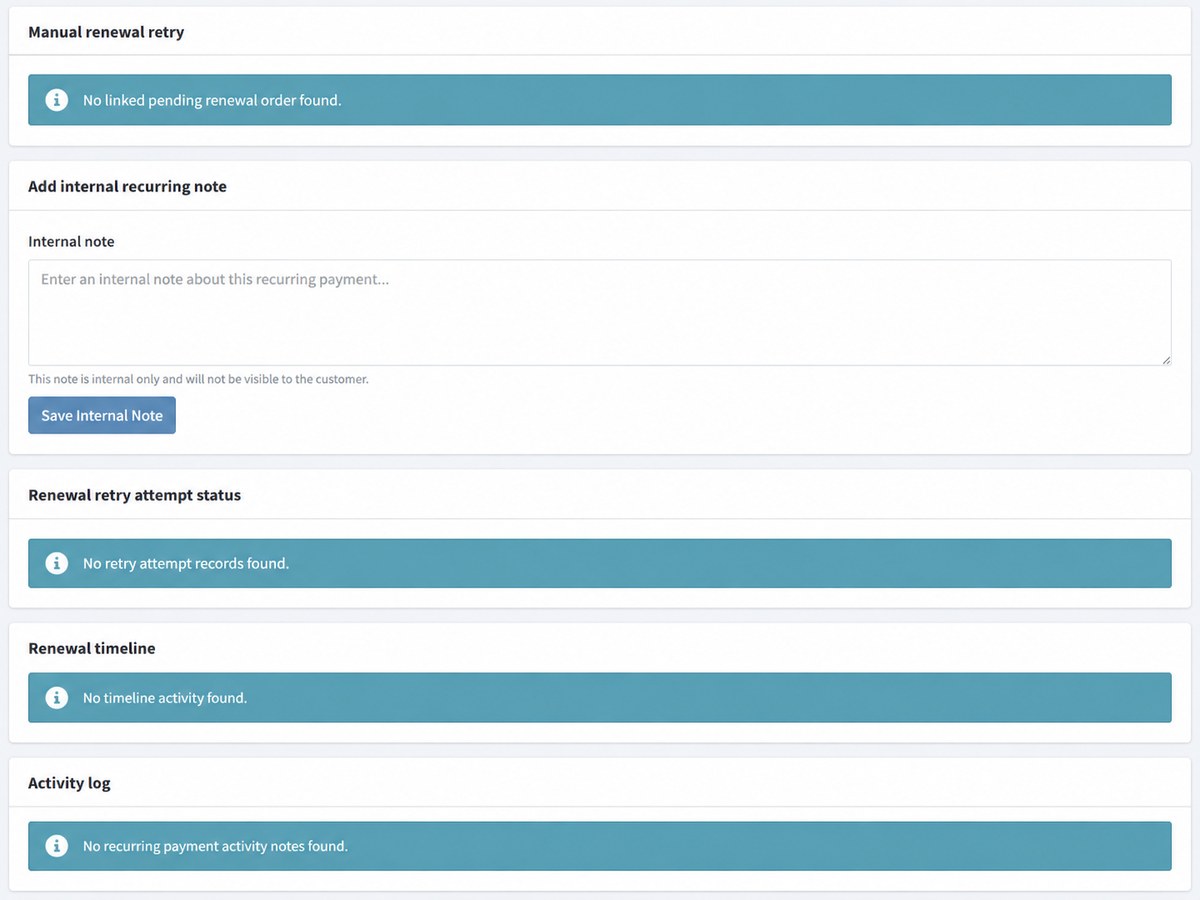
Does the plugin support recurring payments?
Yes. The plugin includes recurring payment and renewal tools that can work with saved Stripe payment methods.
Can customers view recurring payments from My Account?
Yes. Customers can view recurring payment information, including subscription status, cycle details, next payment date, initial order details, and renewal card information when enabled.
Can customers update the default card for renewals?
Yes. Customers can add or update the default card used for future recurring renewals.
What does the admin recurring payments dashboard show?
The dashboard can show total recurring payments, active records, paused records, needs-attention records, no-default-card records, inactive/canceled records, and completed records.
Can admins pause or snooze a recurring renewal?
Yes. Admins can pause renewal processing until a specified UTC date/time and save an internal pause reason.
What do the Process 1 Pending Renewal and Process Up To 10 Pending Renewals buttons do?
These tools allow admins to manually process one pending renewal or a batch of up to ten pending renewals. They are useful for testing and controlled renewal processing.
Section 5: Webhooks, Reliability & Event Sync
Stripe webhook endpoint setup, recommended events, delivery results, order notes, system logs, and troubleshooting.
What is a Stripe webhook?
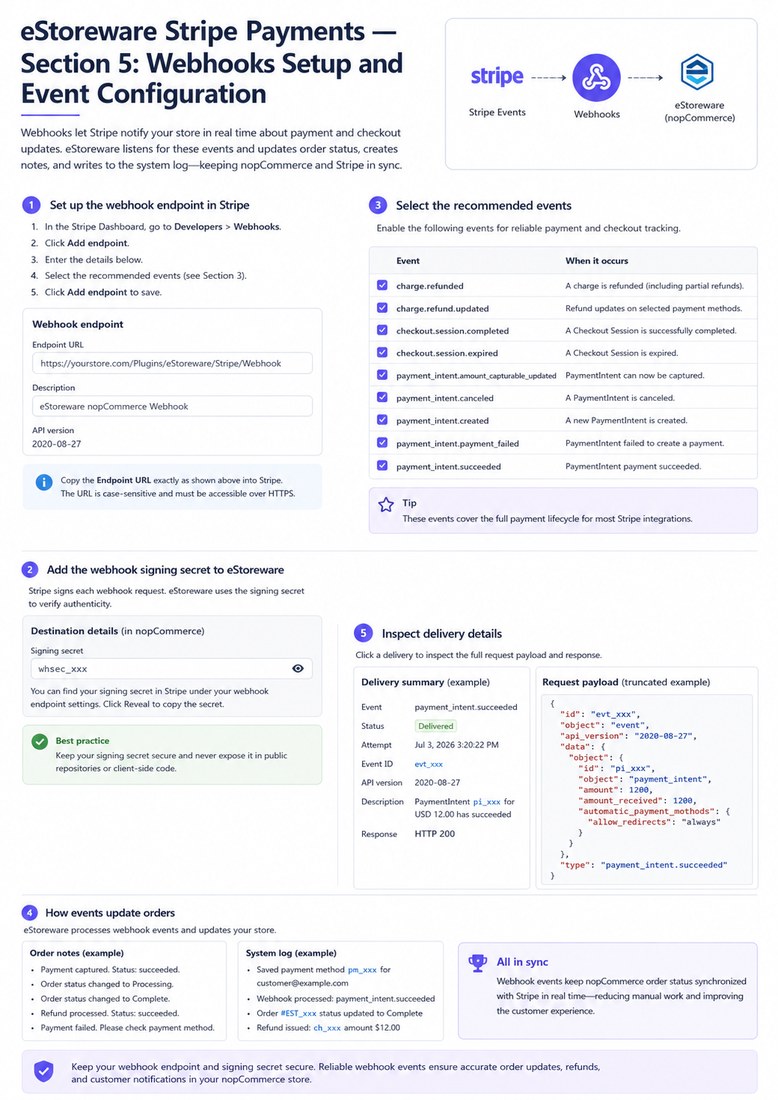
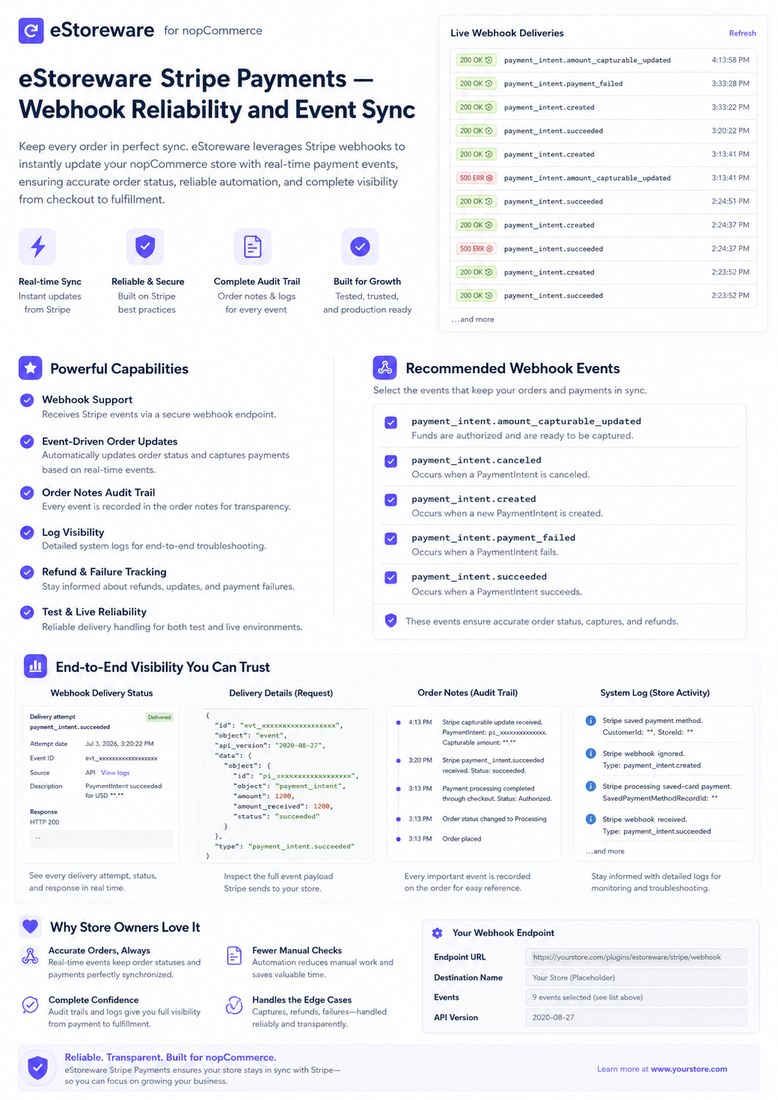
A webhook is a real-time message Stripe sends to the store when payment, refund, authorization, checkout session, or other payment activity occurs.
Why does the plugin need webhooks?
Webhooks help keep nopCommerce synchronized with Stripe after checkout. They can update payment state, create order notes, track failures, and support refund or capture-related activity.
Where do I get the webhook URL?
The plugin configuration page provides the webhook endpoint URL. This URL should be added in Stripe Dashboard under Developers > Webhooks.
Which Stripe events should be enabled?
Recommended events include charge.refunded, charge.refund.updated, checkout.session.completed, checkout.session.expired, payment_intent.amount_capturable_updated, payment_intent.canceled, payment_intent.created, payment_intent.payment_failed, and payment_intent.succeeded.
What does 200 OK mean in Stripe webhook delivery history?
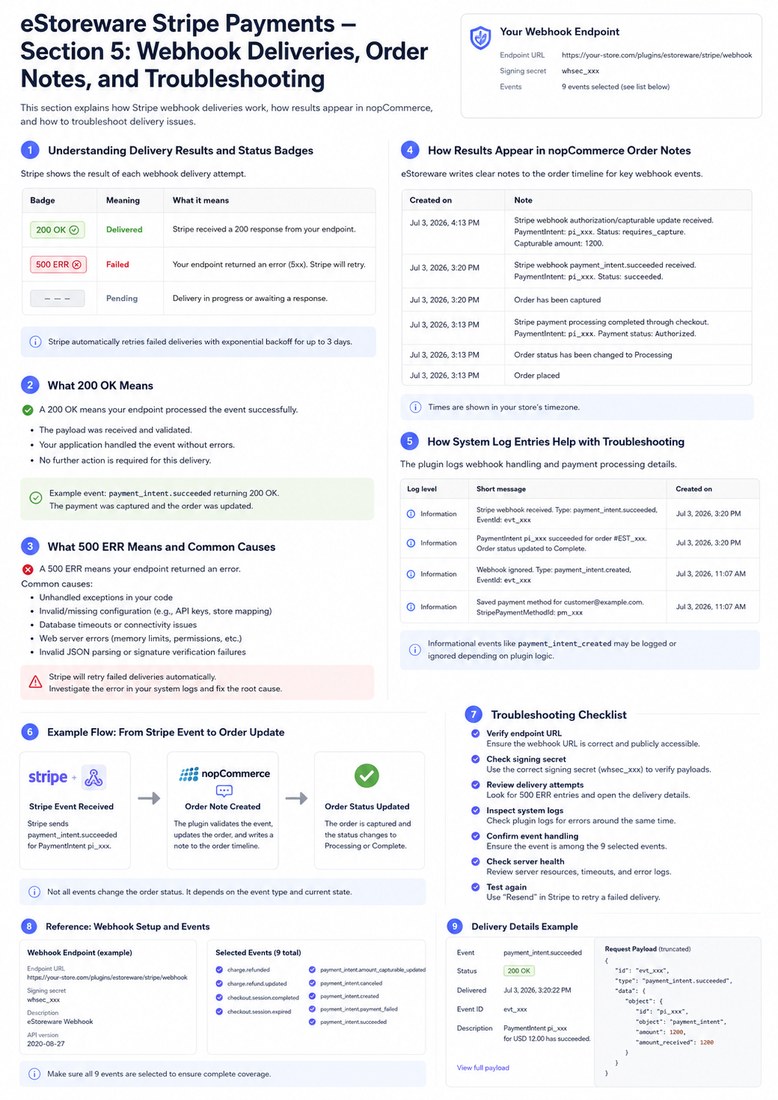
200 OK means Stripe delivered the event and the store accepted it successfully. Stripe will not retry that delivery.
Can system logs help troubleshoot webhooks?
Yes. System logs can help identify webhook signature errors, server errors, ignored events, payment mapping issues, or Stripe API errors.
Section 6: Installation, Licensing & Go-Live
Plugin installation, eStoreware dashboard, license activation, sandbox testing, connection testing, payment method enablement, and go-live checklist.

How do I install the plugin?
Upload the plugin package from the nopCommerce Local plugins page or deploy the plugin manually to the nopCommerce plugins folder, then reload or restart the application if required.
Where do I confirm the plugin installed correctly?
Check the nopCommerce Local plugins list and the Payment methods page to confirm that eStoreware Stripe Payments is installed, enabled, and configurable.
What is the eStoreware plugin suite dashboard?
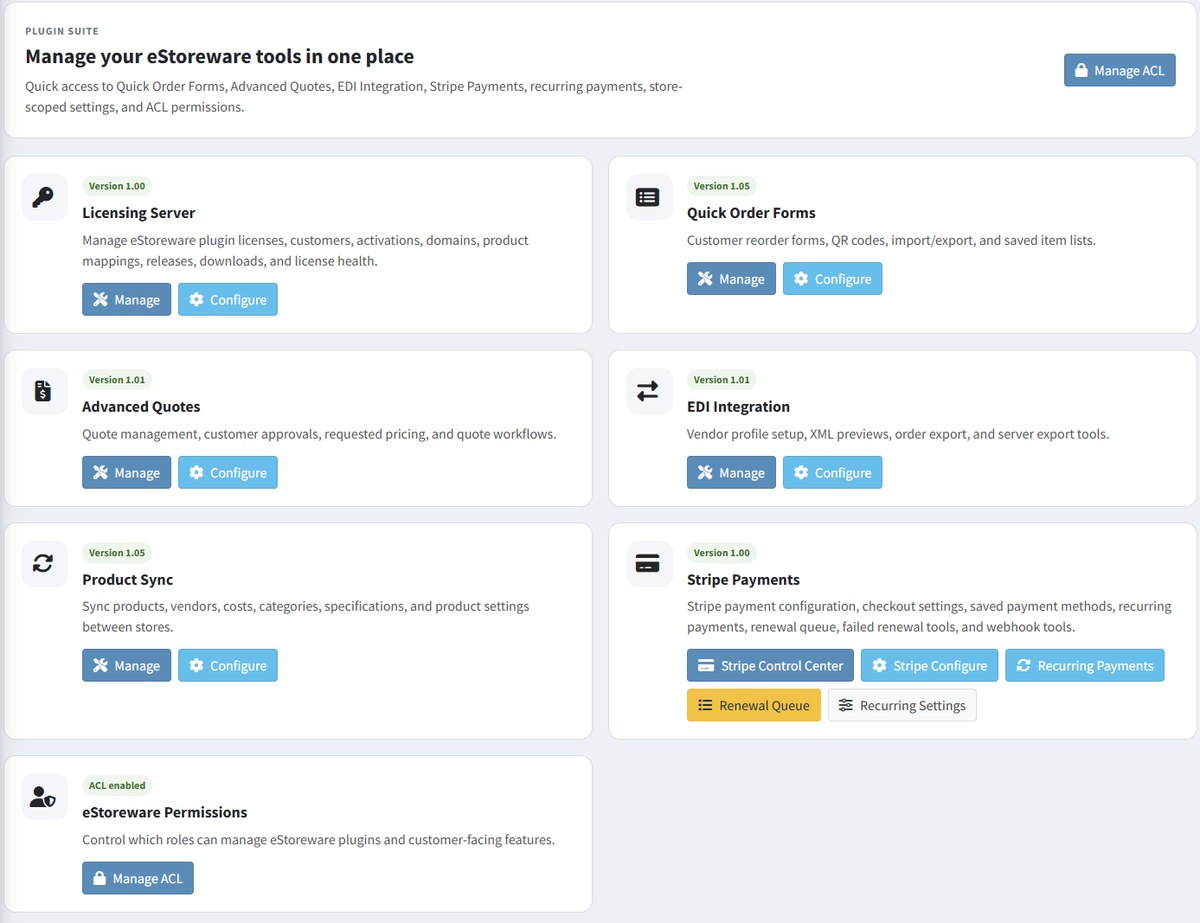
The eStoreware dashboard provides centralized access to eStoreware modules, including Stripe Payments, recurring payments, renewal tools, and related plugin features.
Do I need to activate a license before using the plugin?
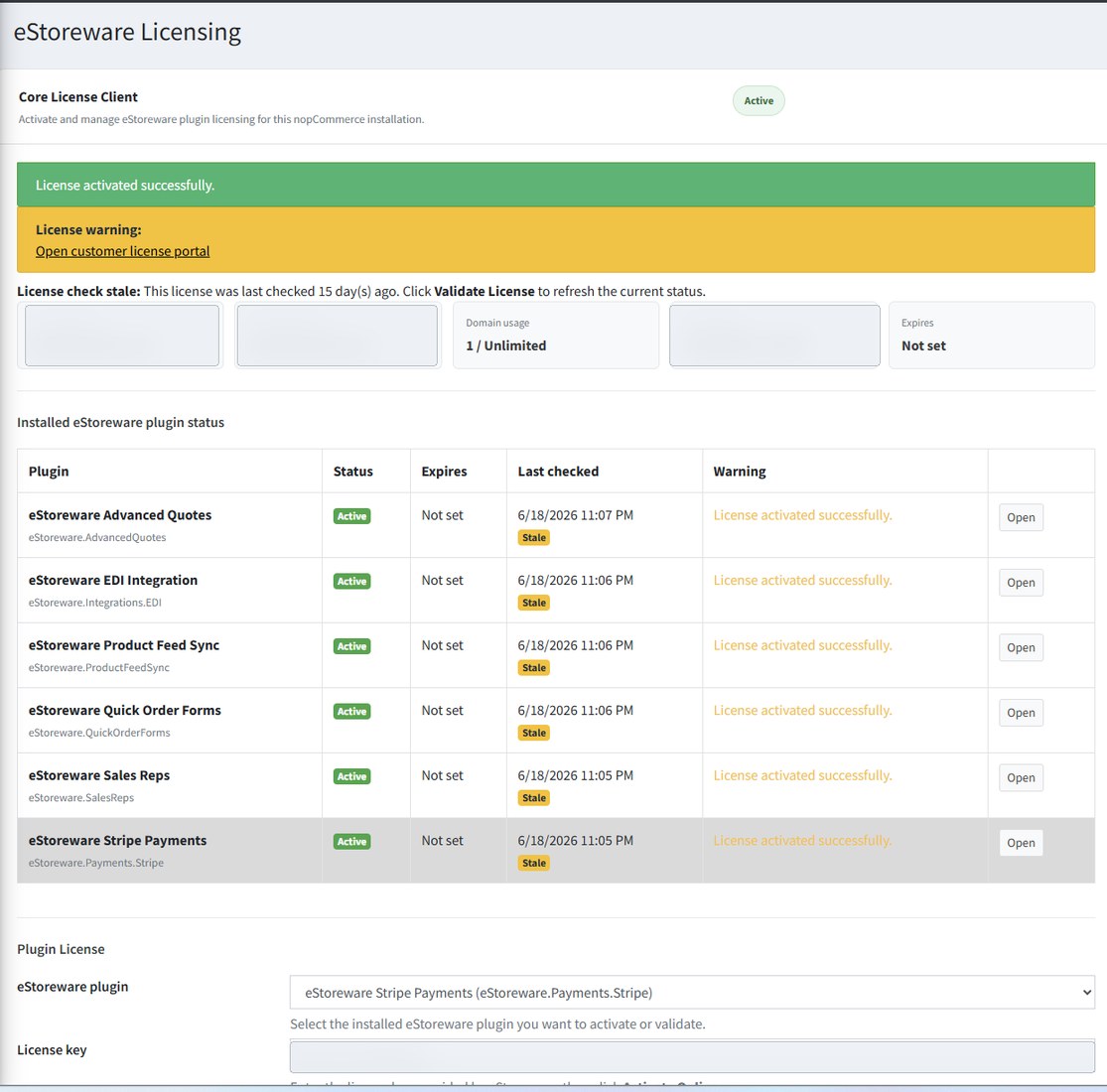
Yes. The plugin license should be activated or validated before final testing and production launch.
Can I test with sandbox credentials before going live?
Yes. Sandbox mode is recommended for setup and testing before accepting live payments.
What should I test before switching to live mode?
Test plugin installation, license activation, sandbox keys, webhook setup, connection test, checkout payment selection, saved cards, 3D Secure behavior, refunds, and recurring renewals if used.