
Install and open the settings
This guide describes Printer Finder 1.03. Check the installed version before following the cascading-filter workflow.
- Have your website administrator back up the site and install the matching nopCommerce 4.80 Printer Finder package through Configuration → Local plugins, or the website’s normal plugin deployment process.
- Restart/reload plugins when prompted. For a new installation, install the plugin and open Configure. Its configuration is also available through Configuration → Widgets.
- For an existing installation, update it in place. Do not uninstall to upgrade from 1.00, 1.01, or 1.02; the normal 1.03 update preserves the finder settings.
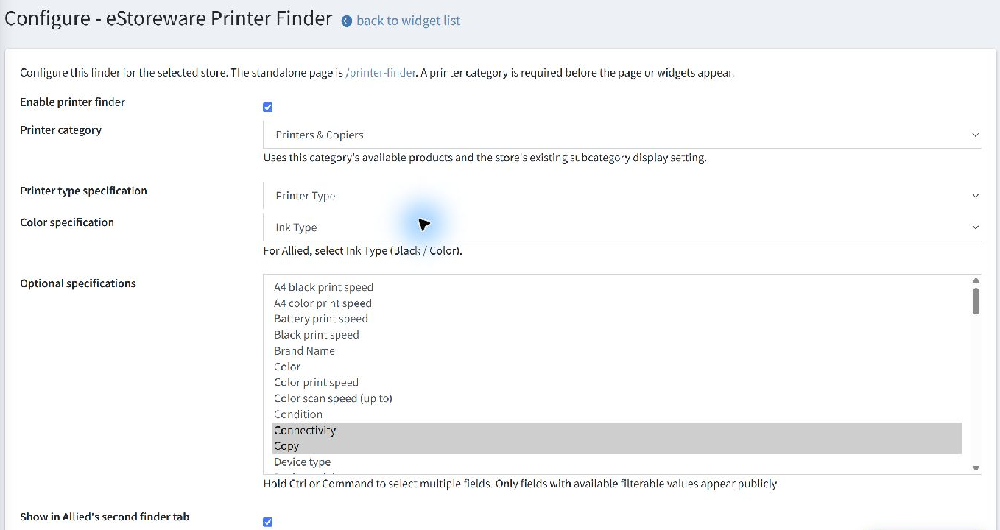
- Choose the intended store scope and enable the finder. Select a published, accessible printer category before expecting the public page or widget to appear.
The dedicated search page is /printer-finder. The standalone finder does not require Seven Spikes or the Allied homepage integration.
Map your category and filter fields
- Set Printer category to the equipment category shoppers should search. The store’s existing subcategory and featured-product rules apply.
- Set Printer type specification to the specification containing your printer types.
- Set Color specification to the field containing black/color capability. Allied’s catalog uses Ink Type; choose the field that matches your own catalog.
- Assign product brands through native manufacturer assignments. Brand does not use a custom-text specification.
- Select the Optional specifications you want shoppers to use, such as connectivity, duplex printing, paper size, scanning, or print speed. Use Ctrl/Command to select multiple entries. Select none to keep only type, brand, and color.
- Choose results per page and save.
Specification values must have Allow filtering enabled. Descriptive custom text is not offered as a filter choice. Options are built from eligible catalog products; selecting a field does not create missing product data.
Choose the search placement
- Dedicated page: use
/printer-finderwith a compatible theme, independently of a homepage tab. - Allied’s two-tab homepage: enable Show in Allied’s second finder tab, activate the Printer Finder widget, and use the matching Allied theme integration. The existing ink-and-toner finder stays separate.
- Separate homepage section: disable the second tab and select a supported standalone widget placement. Other themes must render the chosen widget zone.
Leave Standalone homepage widget set to Do not add a standalone homepage widget when you only want Allied’s second tab and the dedicated page. A partial theme integration must be merged through the normal file-deployment process; do not submit it as a complete theme in the admin uploader.
Use the printer search
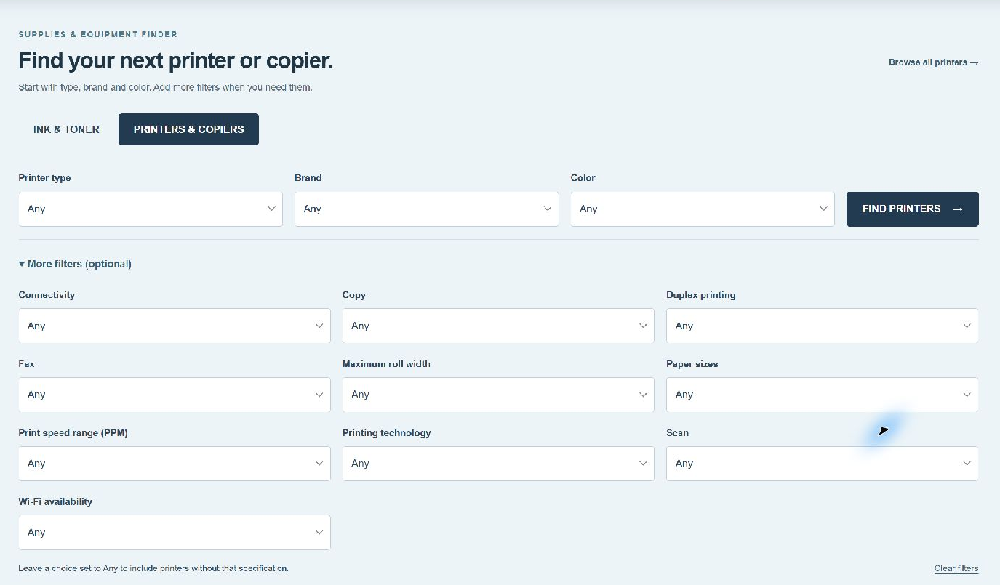
- Choose a printer type, then a brand and color capability, or leave any choice set to Any.
- Open More filters (optional) for the additional specifications configured on your store.
- Choose Find printers and review the matching products. Results use the active theme’s catalog cards and paging.
- Adjust filters in the results sidebar or clear them to broaden the search.
In 1.03, choices cascade in order: type → brand → color → optional fields. Later lists show choices found on available matching products. Compatible selections remain; an incompatible later choice resets to Any with an explanation. Wait for refreshed choices before submitting.
Understand which products appear
The finder respects the current store and customer’s product access, publication status, visibility, availability dates, category rules, and inventory. Both the choices and results use the same eligible product set.
Inventory-tracked products need positive available stock, including applicable warehouse reservations or attribute-combination stock. Zero-stock backorders are excluded. Products configured not to track inventory follow that native setting.
A missing specification does not exclude a product from a broad search. It only stops matching when a shopper explicitly selects a value for that specification. Filters narrow the existing catalog; the finder does not change product records or create compatibility mappings.
Troubleshoot common questions
The finder or page is missing
Check that the plugin is installed and enabled, a published accessible category is selected for the intended store, and the widget is active for a homepage placement. Check the chosen theme zone or Allied integration when the dedicated page works but the homepage section does not.
A brand or optional filter is missing
Check product manufacturer assignments, specification mappings, Allow filtering, stock and publication. A field without eligible values can be hidden. Broaden earlier selections to see more choices.
A selection changed back to Any
An earlier selection or current availability made the later combination incompatible. Choose again from the refreshed list.
Results look different from the category
Use the current plugin views and the active theme’s catalog layout. Version 1.02 introduced the category-layout correction, retained in 1.03. Ask eStoreware to check a custom theme integration.
Who should use it?
It suits stores selling printers, copiers, or related equipment with structured catalog specifications. It searches equipment; cartridge compatibility continues to use your store’s separate supplies finder.
FAQ & support · Feature overview · Contact eStoreware · Back to top