
Keep the service visit and payment record clear.
eStoreware Service Requests gives signed-in customers a place to request a printer, copier or plotter service visit and review their own service history. Staff confirm appointments, review equipment coverage, prepare labor and parts estimates, and request approval when the financial details change.
The optional eStoreware Stripe Service Billing add-on provides a separate service-fee authorization and capture workflow: the customer approves a temporary hold, staff capture the approved fee after completing the work, and parts use their own quotes, approvals and charges.
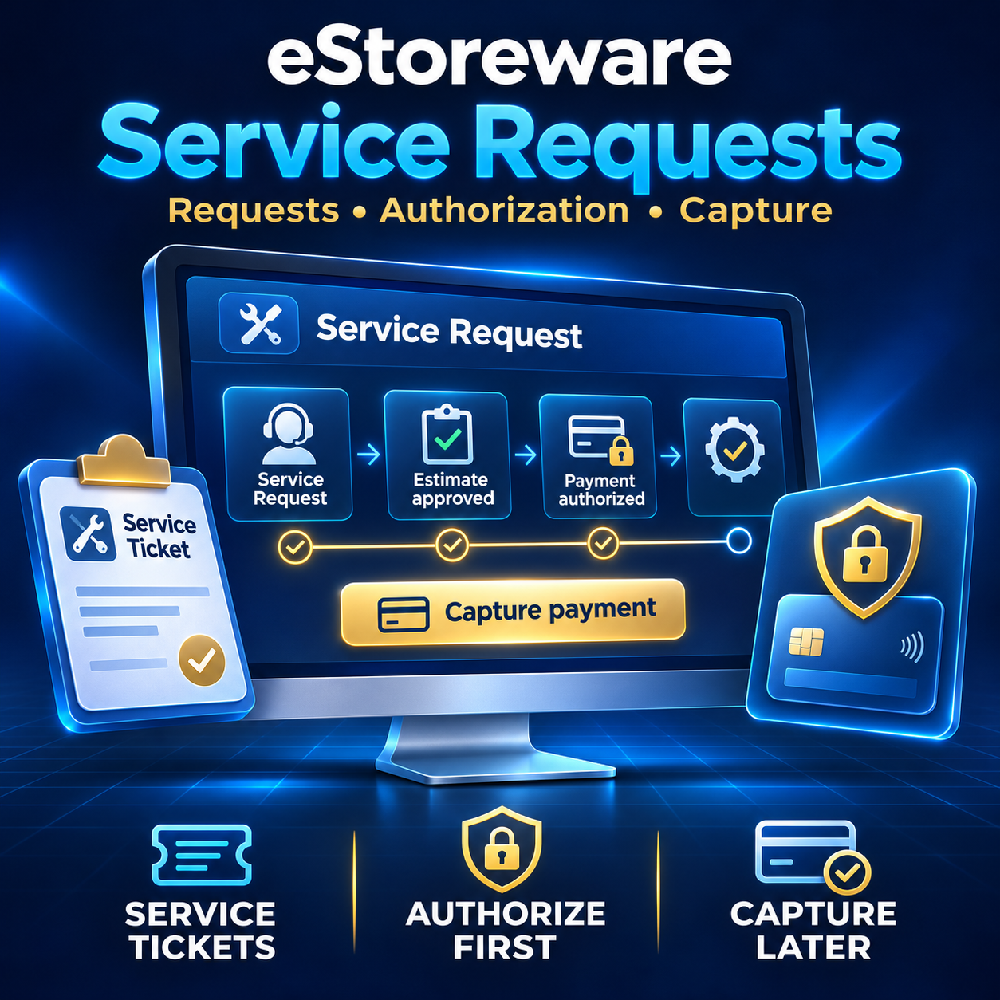
Before you begin
- Platform: these documented releases target nopCommerce 4.80 and .NET 9: Service Requests 1.12 and Stripe Service Billing 1.01.
- Dependencies: install eStoreware Core and the compatible eStoreware Stripe Payments plugin, activate its license for the store domain, configure the merchant's Stripe credentials, and enable saved cards. Service Requests was built against Stripe Payments 1.1.3; Service Billing was built against 1.1.7. Confirm the compatible package combination with eStoreware before installation.
- Customer access: customers need an active registered account. Customer pages show only records belonging to that customer in the current store.
- Staff access: the native Orders create/edit/delete permission controls the service queue and billing operations. Manage plugins controls Service Requests payment and notification settings; Manage payment methods controls the separate Service Billing settings.
- Store setup: use the store's HTTPS URL. Configure sending email accounts if you want Service Requests notifications.
Choose your billing workflow.
These plugins provide two distinct payment paths. Saving a card is the first step in both; it does not itself charge the customer or reserve the service fee.
| What happens | Service Requests | Optional Stripe Service Billing |
|---|---|---|
| Staff workspace | /Admin/ServiceRequests |
/Admin/StripeServiceBilling |
| Customer history | /customer/service-requests |
/customer/service-billing |
| Card setup | Job-specific consent and secure card saving. No payment or authorization hold. | Secure card saving first. A separate customer action authorizes the service-fee hold. |
| Approval | Customer approves the current total: labor, parts and reviewed tax. Financial changes require approval again. | Customer approves the exact service-fee hold and later capture. Each parts quote needs its own approval. |
| Service payment | Staff selects Complete job & charge approved total after finishing the work. | Staff selects Complete work & capture service fee to capture the existing unexpired authorization. |
| Parts | Included in the current approved completion total. | Separate immutable quote and payment. Staff explicitly charges approved parts after work completion and a paid service fee. |
| Covered $0 service | A verified $0 total records No payment due without a Stripe charge. | Positive USD totals only; a service or parts payment must total at least $0.50. |
| Optional customer and staff service notifications through the native email queue. | Staff shares the customer approval link directly; this add-on does not send billing emails. |
Step by step: install and configure.
- Install the compatible packages. In nopCommerce, open Configuration > Local plugins > Upload plugin or theme, upload the supplied Service Requests package, and restart as required. Install the separate Stripe Service Billing package only when you need its hold-and-capture workflow. Update an existing installation in place; do not uninstall and reinstall to apply an update.
- Activate and configure Stripe. Activate
eStoreware.Payments.Stripefor the store domain in Core Licensing. Enter the merchant's test publishable and secret keys in Stripe configuration and enable saved cards. - Enable the chosen service module in test mode. For Service Requests, open
/Admin/ServiceRequests/Paymentsand select Enable secure service card setup and completion billing. For the separate add-on, open/Admin/StripeServiceBilling/Settingsand select Enable separate Stripe service billing. Leave each module's real-service-payment option unchecked while testing. - Create the module's own Stripe test webhook. Use the endpoint and events below. Enter that endpoint's own signing secret in the matching module's settings. Service Requests, Service Billing and checkout use separate webhook secrets; do not reuse the checkout endpoint's secret.
- Confirm scheduled reconciliation. Under System > Schedule tasks, confirm Reconcile service payments for Service Requests and, when installed, Reconcile Stripe service billing. Each registers at 60-second intervals with Stop on error disabled.
- Test the complete customer and staff flow. Verify card saving without a charge, exact approval, successful payment, repeated actions, decline and 3D Secure recovery. For Service Billing, also verify the authorized hold before capture, separately approved parts, release/cancellation and expired-hold renewal.
- Configure live operation after reviewing test results. Set the live Stripe credentials and the module's separate live webhook. Explicitly enable real service payments only for the chosen module. Create fresh live requests or billing jobs with live card consent; existing test records cannot become live charges.
Service Requests webhook
Replace YOUR-STORE with the store's HTTPS host. Use this module's signing secret in /Admin/ServiceRequests/Payments.
https://YOUR-STORE/service-payments/webhook

setup_intent.succeeded
payment_intent.succeeded
payment_intent.payment_failed
payment_intent.processing
payment_intent.requires_action
payment_intent.canceled
charge.refunded
Separate Stripe Service Billing webhook
Use this add-on's signing secret in /Admin/StripeServiceBilling/Settings. The capturable-amount event keeps service-fee authorization status current.
https://YOUR-STORE/stripe-service-billing/webhook

setup_intent.succeeded
payment_intent.amount_capturable_updated
payment_intent.succeeded
payment_intent.payment_failed
payment_intent.requires_action
payment_intent.processing
payment_intent.canceled
charge.refunded
These documented packages use Stripe.net 48.0.0 with snapshot webhook payloads compatible with API version 2025-03-31.basil. Confirm the installed SDK and package requirements when upgrading.
Step by step: a service request and completion payment.
Use this path when the current customer-approved labor, parts and tax will be charged together after staff completes the service job.
Customer: request the visit and save a card
- Sign in and open the service request page. On the store where Service Requests is installed, go to
/service-request. Select Printer, Copier or Plotter, enter the manufacturer/model, optional serial number, contact phone, service address, preferred date and issue description. - Review the estimate and consent. Indicate any claimed supply-program coverage, acknowledge the service estimate and appointment confirmation, and accept the job-specific card and completion-charge consent. Staff must verify coverage before waiving labor.
- Continue to secure card setup. Select Continue to secure card setup and use Stripe's embedded fields. The request is saved before card setup starts. Saving the card makes no charge and creates no expiring service-fee hold.
- Return to My service requests. Open
/customer/service-requeststo check the job's card label, appointment, estimate and status. A preferred date remains a request until staff enters a confirmed appointment.
Staff and customer: confirm and approve the current estimate
- Open the current store's service queue. Go to
/Admin/ServiceRequests. Review the equipment, description, service address and preferred date. Enter the confirmed appointment with its timezone. - Review labor, parts, tax and coverage. Enter labor, any parts amount and description, and the applicable reviewed tax. Verify the equipment's supply-program labor coverage before selecting the coverage checkbox. Select Save request / request updated approval.
- Customer approves the displayed total. In My service requests, the customer reviews the current labor, parts and tax, accepts the charging acknowledgement, and selects Approve this total. Changes to labor, parts, parts description, tax or coverage require fresh approval.
- Complete the work and review the final total. Save any final financial changes first and obtain the customer's approval again. In the staff record, confirm that the work is finished and the final tax and approved total have been reviewed.
- Charge the approved completion total. Select Complete job & charge approved total. This locks the financial record and prepares the job's invoice. A verified $0 total produces No payment due; positive card totals must be at least $0.50.
- Verify the invoice result. Read the invoice's payment state and payment reference. Completed describes the work; it does not prove payment. If payment needs attention, the customer uses Resolve payment securely. Staff can select Refresh / safely resume this payment on the existing invoice.
Step by step: quote, approve and charge separate parts.
In Stripe Service Billing, each parts quote has its own approval and payment reference. Parts may be quoted after the service authorization has been prepared. They can be charged only after the job is complete and its service fee is paid.
- Staff creates the parts quote. In the billing job, enter a clear parts description, parts amount and reviewed parts tax. Review existing quotes before adding another, then select Save parts quote for approval.
- Customer reviews the separate total. The customer opens the same private billing page, reviews the parts and tax, accepts the exact quote, and selects Approve separate parts total. Approval records consent; it does not trigger a payment.
- Staff confirms the job and service fee are complete. The work must be completed and the service-fee payment must show Paid. The approved parts charge then becomes available for staff review.
- Staff explicitly charges the parts. Check the separate parts-charge review acknowledgement and select Charge approved parts to saved card. The approved parts total uses this billing job's same saved card and its own payment reference.
- Verify the parts payment. Check the parts record for Paid or a clear action-required state. If needed, ask the customer to select Resolve payment securely for that parts payment.
Correcting a quote: parts quotes are immutable. Cancel an unpaid incorrect quote, confirm its canceled status, and create a replacement requiring new customer approval. For a paid record, handle any refund in Stripe and refresh the original record or receive the refund webhook.
Understand payment status and hold expiry.
| State or event | Meaning | Next action |
|---|---|---|
| Card saved | Card setup completed. No payment or hold is created by saving alone. | Continue with the selected workflow's customer approval. |
| Awaiting approval | The current request total or separate parts quote needs the customer's approval. | Customer reviews and approves the exact displayed total. |
| Authorized | Service Billing has a service-fee hold. The amount is reserved and remains unpaid. | Monitor the UTC capture deadline; capture after work completion. |
| Paid | The provider confirmed the payment. | Retain the existing record and payment reference. Review any recorded refunds separately. |
| Card required / Action required | The payment is unpaid or needs bank authentication. | Customer opens Resolve payment securely on the owned payment record. |
| Unknown / Review required | The provider result needs reconciliation or staff review. | Refresh the existing record and check its payment reference before any further payment action. |
| Expired | A Service Billing authorization is past its provider-defined capture deadline. | Release/cancel the old hold, confirm cancellation, and obtain a new customer-approved hold. |
| No payment due | A Service Requests completion invoice has a verified $0 total. | No card charge is required. |
| Completed | The work is recorded as finished. | Read the separate invoice or charge state to confirm payment. |
Renew an expired service-fee hold
- In the original Service Billing service-fee record, select Cancel unpaid payment / release hold after reviewing the cancellation acknowledgement.
- Refresh the provider status and confirm that the old authorization shows Cancelled. Do not treat a pending release as a completed cancellation.
- Ask the customer to open the same billing job and select Approve a new service-fee hold, with fresh approval of the exact total.
- Verify the new Authorized record and its capture deadline, then review the completed work before capturing it. The expired and replacement authorizations remain in history.
There is no fixed universal hold duration in this guide: use the actual deadline returned by Stripe. An expired hold is never automatically replaced with a new charge.
Step by step: service email notifications.
Service Requests can notify customers and staff about request receipt, confirmed appointments, approval requests, customer approval, work completion, payment issues, payment receipt and cancellation. Completed work and a paid invoice are described separately.
- Configure the sender. Test the native sending account under Configuration > Email accounts. Service Requests uses the native email queue and does not store a separate SMTP password.
- Open notification settings. Go to
/Admin/ServiceRequests/Notifications, select a configured sending account, enter the staff inbox and enable notifications. - Review preview messages first. Preview mode defaults on and records messages without sending them. Review the customer/staff previews, links and branding. Turning preview off applies to new events; earlier preview messages are not sent later.
- Run a delivery check. Use the delivery-check control with the saved staff address and current preview setting. It creates no service job or payment.
- Enable delivery and monitor the queue. Turn preview off when ready and confirm the native Send emails task is enabled. Review the service email log's queue IDs, attempts and Sent timestamps.
Default templates use the store logo, company name and contact information. Native templates beginning eStoreware.Service. remain editable. Customer links require sign-in and open only the customer's own record; email links do not approve an estimate or charge a card automatically.
Troubleshooting common service questions.
The service menu or payment settings are unavailable.
Check that the intended plugin is installed, the store's Stripe license is active, saved cards are enabled, and the signed-in staff member has the required permission. Confirm the current store's settings; payment credentials and service configuration are store scoped.
The customer saved a card but no funds were held.
That is expected at card setup. Service Requests charges the approved total on completion without an upfront hold. In separate Service Billing, the customer must also select Authorize service-fee hold and reach Authorized.
Staff cannot complete a Service Requests job.
Confirm that the latest total is approved, the work/final-invoice review is acknowledged, and a valid job card is saved for a positive total. Save financial changes first and request fresh customer approval. Check that the request is neither canceled nor already locked.
A completed job still shows an unpaid invoice.
Completion and payment are separate states. Ask the customer to resolve the original payment through their private history page. Staff should refresh the existing invoice or charge and inspect its payment reference rather than create another job to retry the same work.
The bank requests 3D Secure or the card is declined.
The customer selects Resolve payment securely and completes the secure Stripe flow. Service Billing retains the job's original card for authorization/parts recovery; it does not substitute another default card. The payment remains unpaid until the provider confirms success.
A service-fee capture is unavailable or its result is unclear.
Refresh the existing Service Billing payment. Confirm an unexpired authorization and its UTC deadline. If Stripe already reports the fee paid, record work completion without another capture. If the hold expired, follow the cancellation and fresh-approval steps above. Keep the original payment reference while reconciling an uncertain result.
The approved parts quote has no charge button.
Separate Service Billing requires both completed work and a paid service fee before staff can charge approved parts. Customer approval does not initiate a debit. Confirm the quote is approved and remains unpaid and uncanceled.
Payment status or email delivery appears delayed.
Check the correct module's webhook, endpoint-specific signing secret, test/live mode and scheduled reconciliation task. Reload the history or staff page to see background updates. For notifications, also check preview mode, the native email account, Send emails task and queue log.
A refund or cancellation is needed.
Cancel uncompleted Service Requests work to prevent completion. In Service Billing, cancel unpaid quotes/payments or release uncaptured holds with the provided staff control and confirm provider status. For settled payments, issue the refund in Stripe, then refresh the original record or receive its refund webhook. A completed invoice is not reopened as a new-charge control.
Release scope and merchant customization.
The documented Service Requests release was created for PC & Printer Paradise, including printer/copier/plotter terminology, Service for Supplies coverage, merchant-specific consent and initial USD labor estimates of $95 for printer/copier and $150 for plotter calls. These are implementation-specific estimates, not universal eStoreware pricing or general administrative rate settings. Review and customize the source, consent, rates, currency, theme styling and service policy before deploying for another business.
- Staff enter and review applicable tax. Neither module calculates service tax automatically.
- Service invoices and billing jobs are separate from native nopCommerce product orders. These releases do not export to QuickBooks or synchronize accounting.
- Preferred dates do not reserve calendar capacity. These releases do not dispatch technicians or provide an automatic booking calendar.
- Service Billing supports positive USD card totals of at least $0.50 and fixed service-fee/parts records. Other currencies and zero-dollar covered-service billing are outside that add-on's documented release.
- Service Requests email notifications use the native nopCommerce queue. Its documented atomic email writer targets SQL Server and requires adaptation before use with another database provider.
- Each module has its own settings, webhook and reconciliation task. Service Billing does not change checkout's authorize/capture setting or automatically integrate existing Service Requests records.
- Card details stay in Stripe's secure fields. Keep card numbers, CVV, passwords and payment client secrets out of request descriptions, notes and support messages.
Retain service and payment history when updating or rolling application files back. Before removing Service Billing, resolve or release outstanding holds through Stripe. Use the compatible package and deployment instructions supplied for the target store.
Need help with your service workflow?
Send eStoreware the store URL, plugin versions, whether Stripe is in test or live mode, the service request or billing job number, the visible status, and the action you were taking. Include the original payment reference when investigating a payment result.