eStoreware Advanced Quotes - 14-Day Trial

Create, send, revise, approve, and convert professional customer quotes directly in nopCommerce. Includes cart quote requests, secure customer approval, requested-price tools, branded PDFs, price-preserved cart conversion, quote history, and final order linkage.

Requires eStoreware Core: The free eStoreware Core plugin is automatically included with supported plugin purchases.

SKU: ESW-PLUGIN-AQUOTE-TRIAL
$0.00
*
Supported Versions
4.80
increase decrease
B2B quoting for nopCommerce

Turn shopping carts and customer requests into professional, trackable quotes.

eStoreware Advanced Quotes adds a complete quote workflow to nopCommerce—from the first customer request through pricing, approval, revisions, branded PDF delivery, cart conversion, and final order linkage.
nopCommerce 4.80 .NET 9 Registered and guest requests Multi-store branding
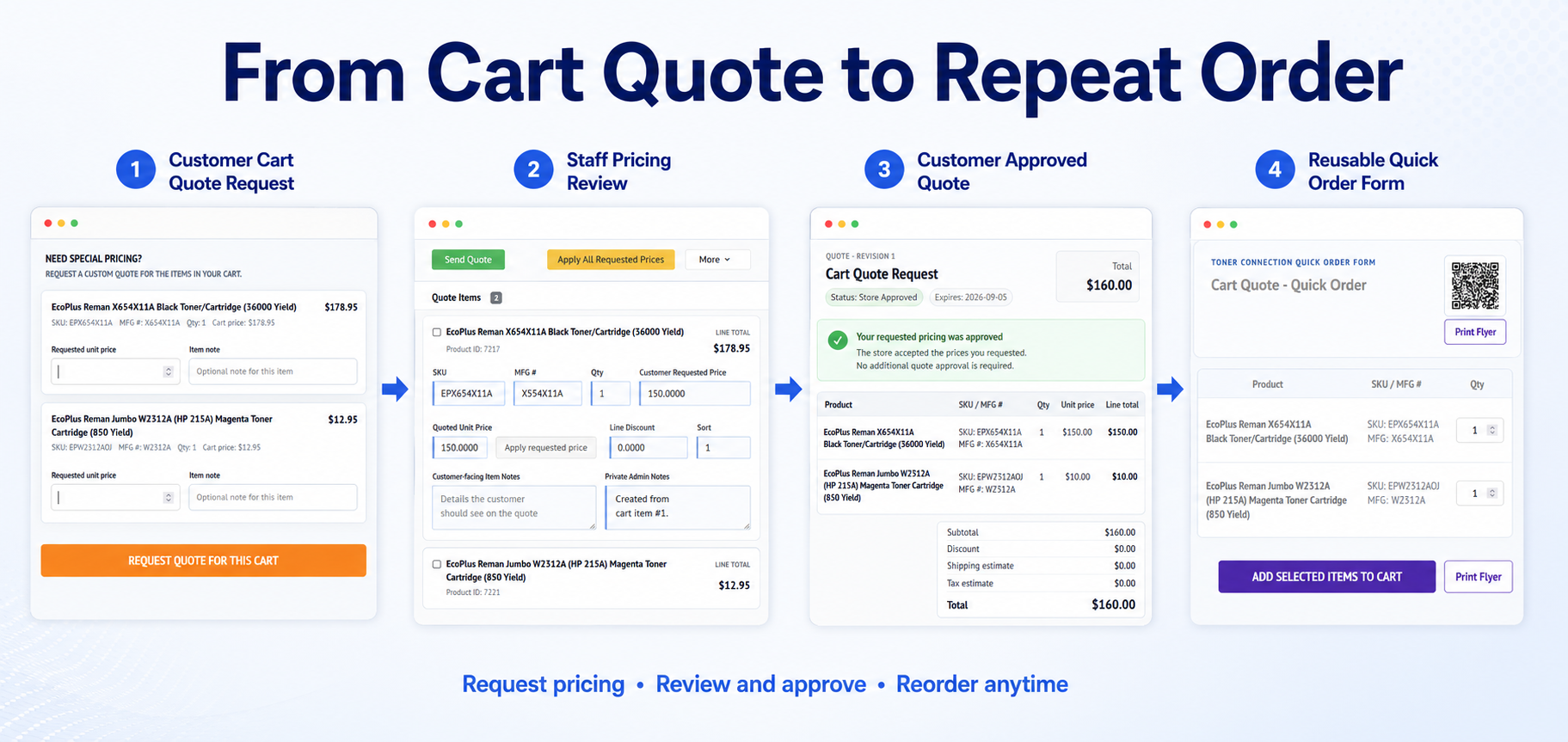
Advanced Quotes workflow from a shopping-cart quote request through pricing approval and conversion to a reusable Quick Order Form
Capture the pricing request once, complete the quote, and turn approved products into an easier repeat-order experience.

From a pricing request to a long-term customer ordering tool

Advanced Quotes connects the customer-facing request, your staff's pricing review, formal quote delivery, and future reordering in one traceable workflow. It eliminates the usual handoff between email, spreadsheets, disconnected PDFs, and manually recreated product lists.

Request special pricing
The customer expands the quote panel in the shopping cart, enters requested unit prices and item notes, and submits the complete cart for review.
Receive immediate confirmation
A confirmation page displays the quote number and next steps, so the customer knows the request and cart items were saved successfully.
Review and assign
The request appears in the Advanced Quotes dashboard. Staff can associate a guest request with a registered customer and retain the original request history.
Prepare the commercial quote
Staff reviews quantities, requested prices, quoted prices, discounts, notes, shipping, tax, expiration, and product details before sending.
Deliver and approve
The customer receives an email and secure quote page. The store can approve requested pricing directly, or the customer can approve or decline the completed quote.
Convert for the next purchase
An eligible quote can become a reusable Quick Order Form with the quoted products, selling prices, quantities, references, share link, QR code, and printable flyer.
Complete this purchase Copy an accepted quote to the customer's cart while preserving the approved unit prices through checkout and linking the final order to the quote revision.
Make future purchases easier Convert the quote to Quick Order Forms so the customer can return to the negotiated product list, adjust quantities, print it, share it, or add selected items to the cart.
The workflow in action

One connected process for customers, sales staff, and repeat orders

These screens show how Advanced Quotes carries the same request from the shopping cart into administration, preserves its history through revisions, and optionally turns the approved product list into a reusable Quick Order Form.
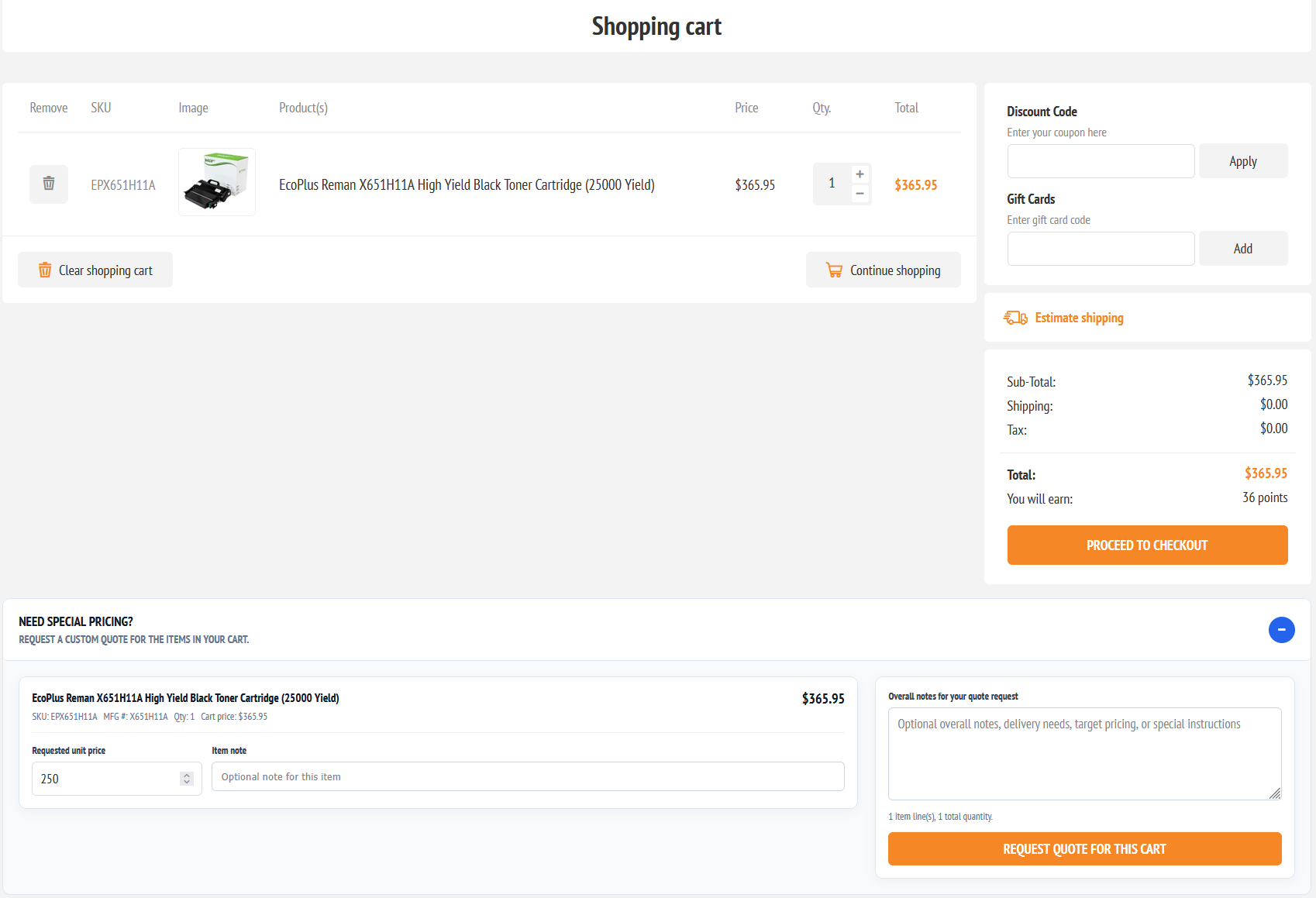
Shopping cart with the Advanced Quotes special-pricing request form
1. Request pricing from the cartThe customer can request a unit price for each product, include item-specific notes, and provide overall delivery or pricing instructions without rebuilding the cart in another form.
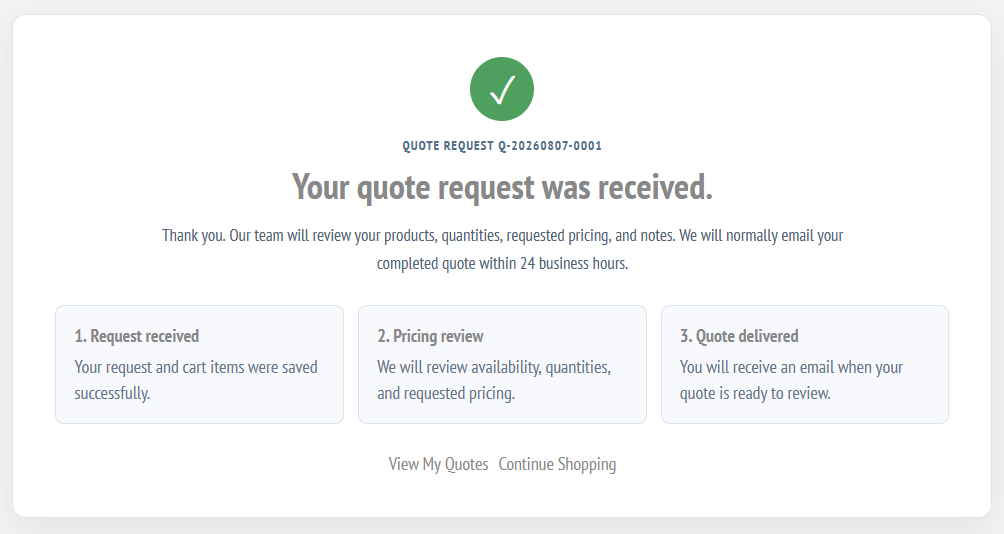
Quote request received confirmation with quote number and next steps
2. Give the customer immediate confirmationThe request-received page confirms that the products and requested pricing were saved, provides the quote number, explains what happens next, and links registered customers to My Quotes.
Advanced Quotes administration dashboard with summary counts and quote filters
3. Find and prioritize every requestDashboard totals separate all quotes, cart requests, pending requests, and approved quotes. Staff can search by quote or customer and filter by status or source.
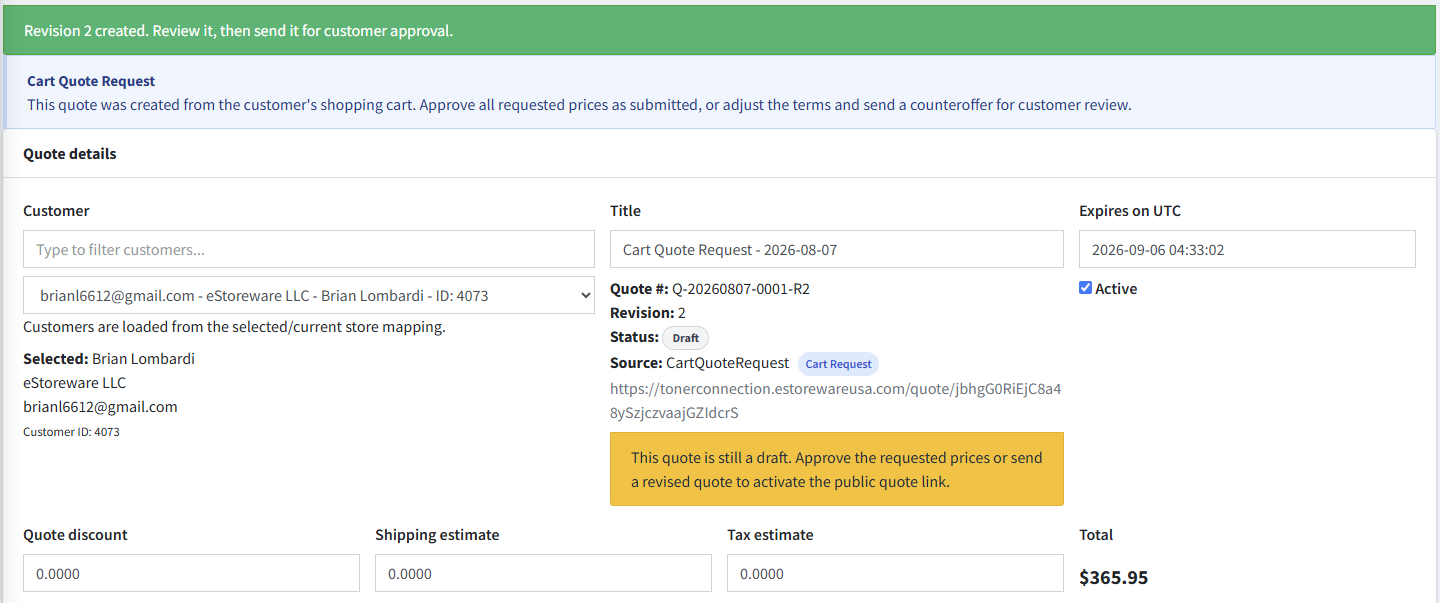
Second revision of a cart quote request ready for customer approval
4. Revise without overwriting the original quoteCreate R2, R3, and later revisions when pricing or terms need to change. The previous quote remains an unchanged commercial record while the new revision returns to Draft for review.
Quote history recording creation of revision two
5. Keep a traceable quote historyImportant workflow events and status changes are recorded with UTC timestamps, including which quote was used to create each revision.
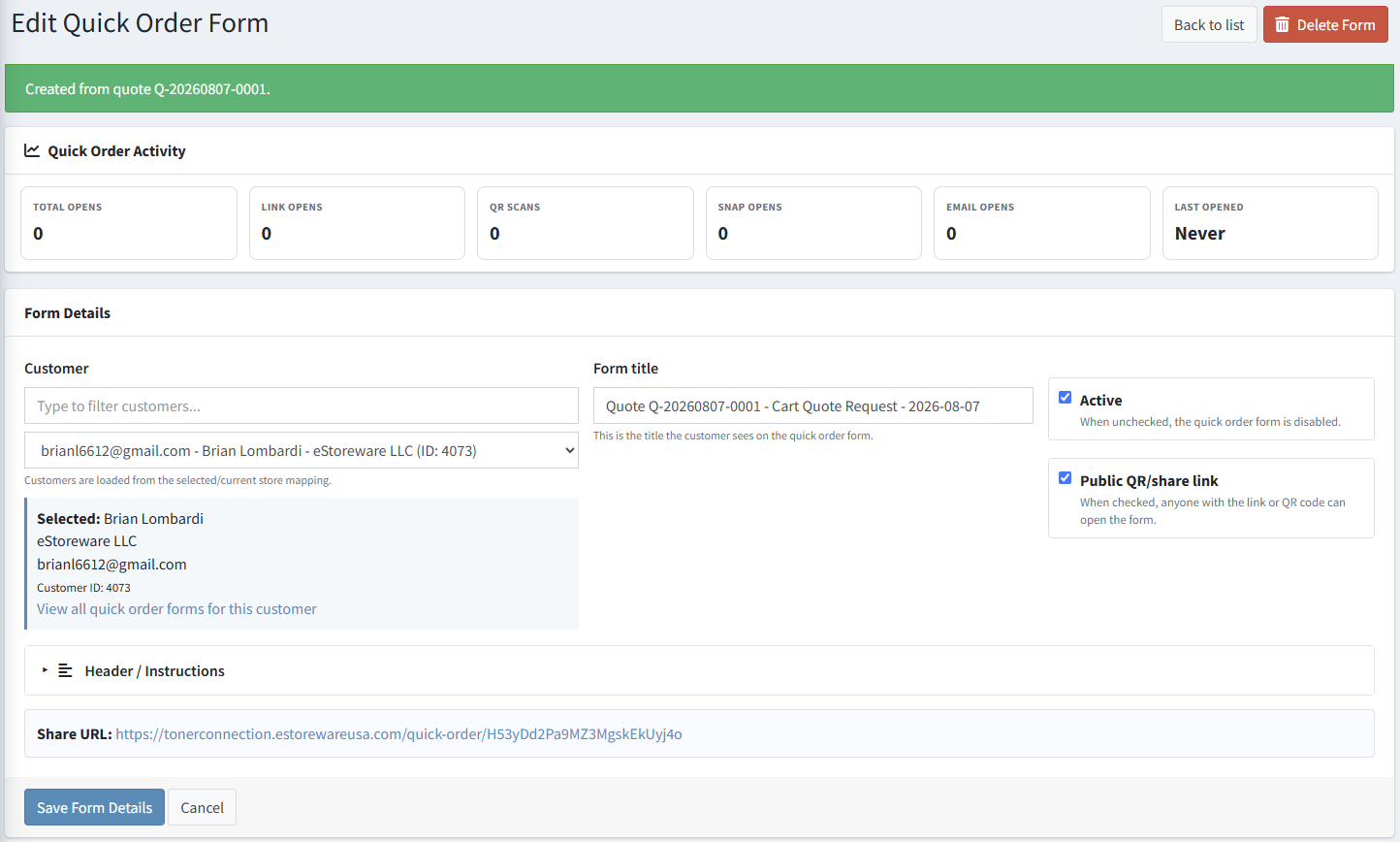
Quick Order Form created directly from an Advanced Quote
6. Convert the negotiated quote into a reusable formThe new Quick Order Form retains the customer, quote reference, products, and negotiated selling prices. Staff can enable the public share link, add instructions, and manage activity.
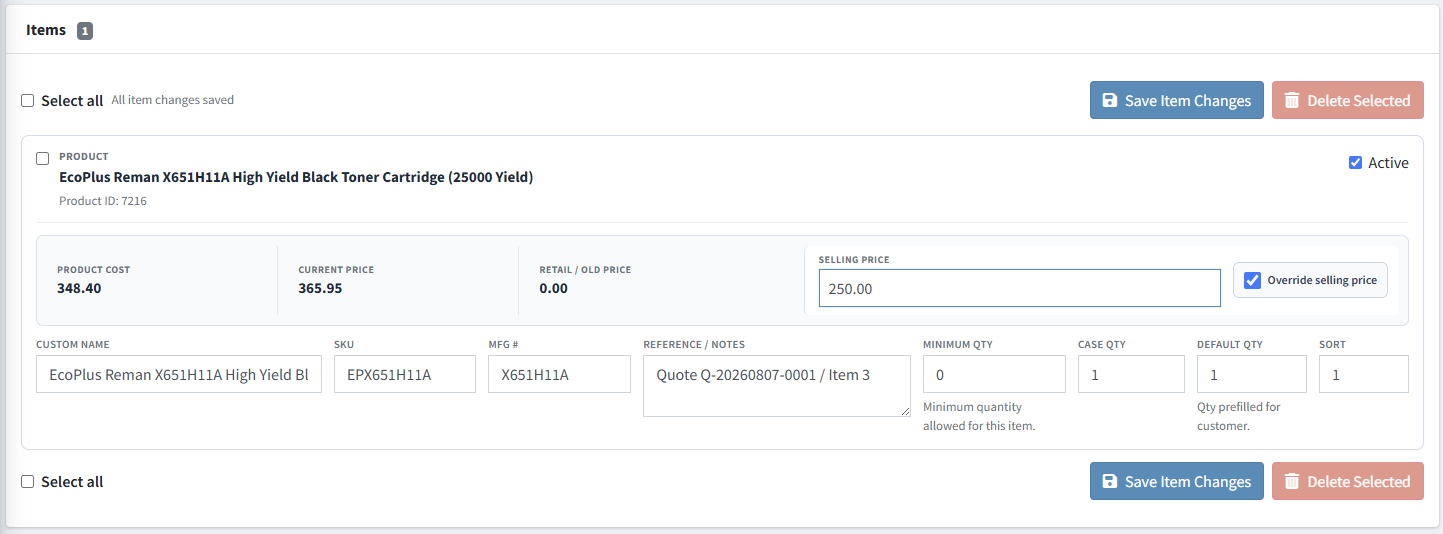
Quick Order Form item retaining the selling price approved in the quote
7. Preserve the approved product and priceConverted items retain the quote reference and selling-price override while adding repeat-order controls such as minimum quantity, case quantity, default quantity, sort order, and active status.
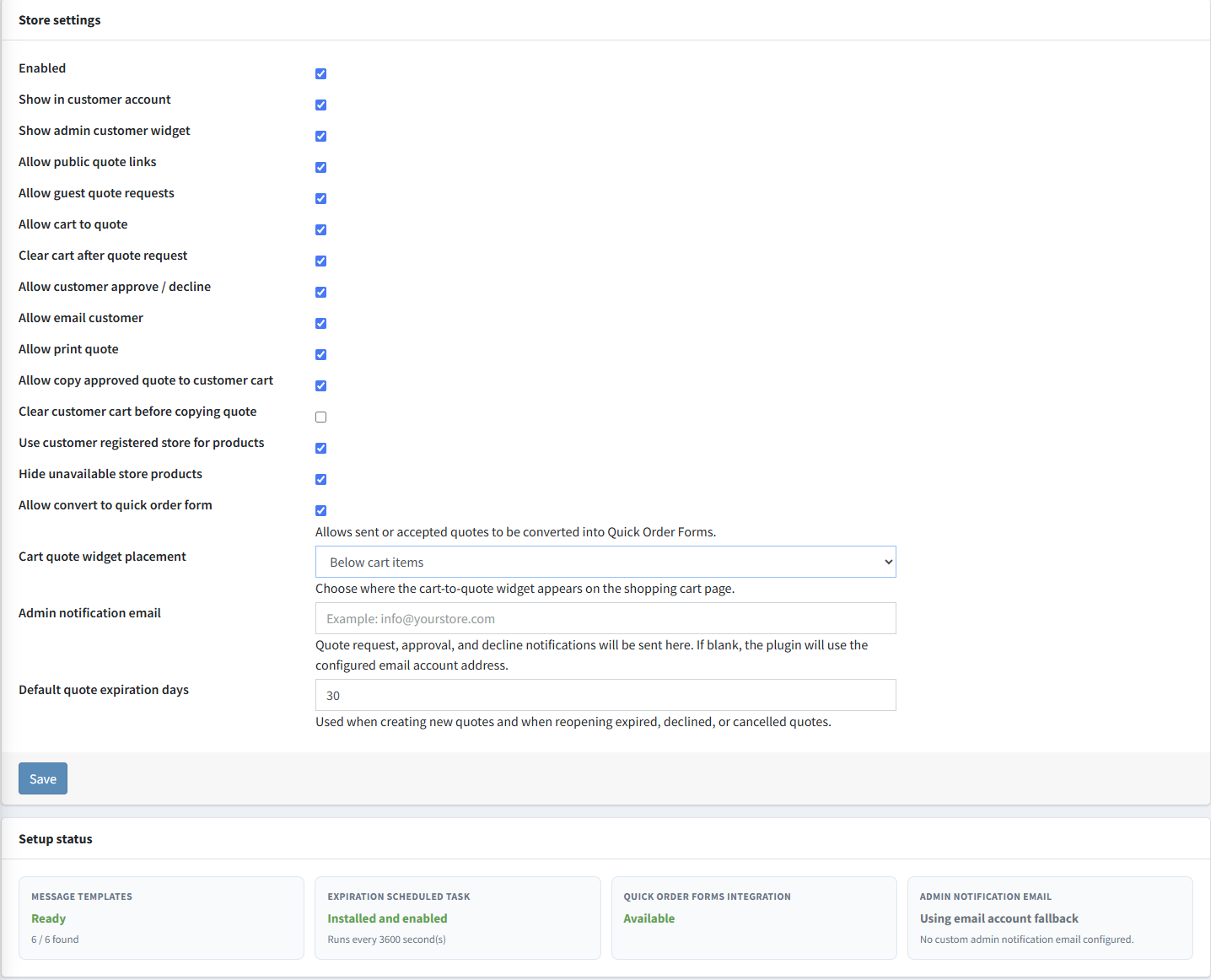
Advanced Quotes store settings and installation status checks
8. Configure the workflow by storeControl guest requests, account navigation, public links, approvals, printing, cart conversion, Quick Order Forms integration, widget placement, notification email, and default expiration. Setup Status confirms message templates, scheduled expiration, and integration availability.
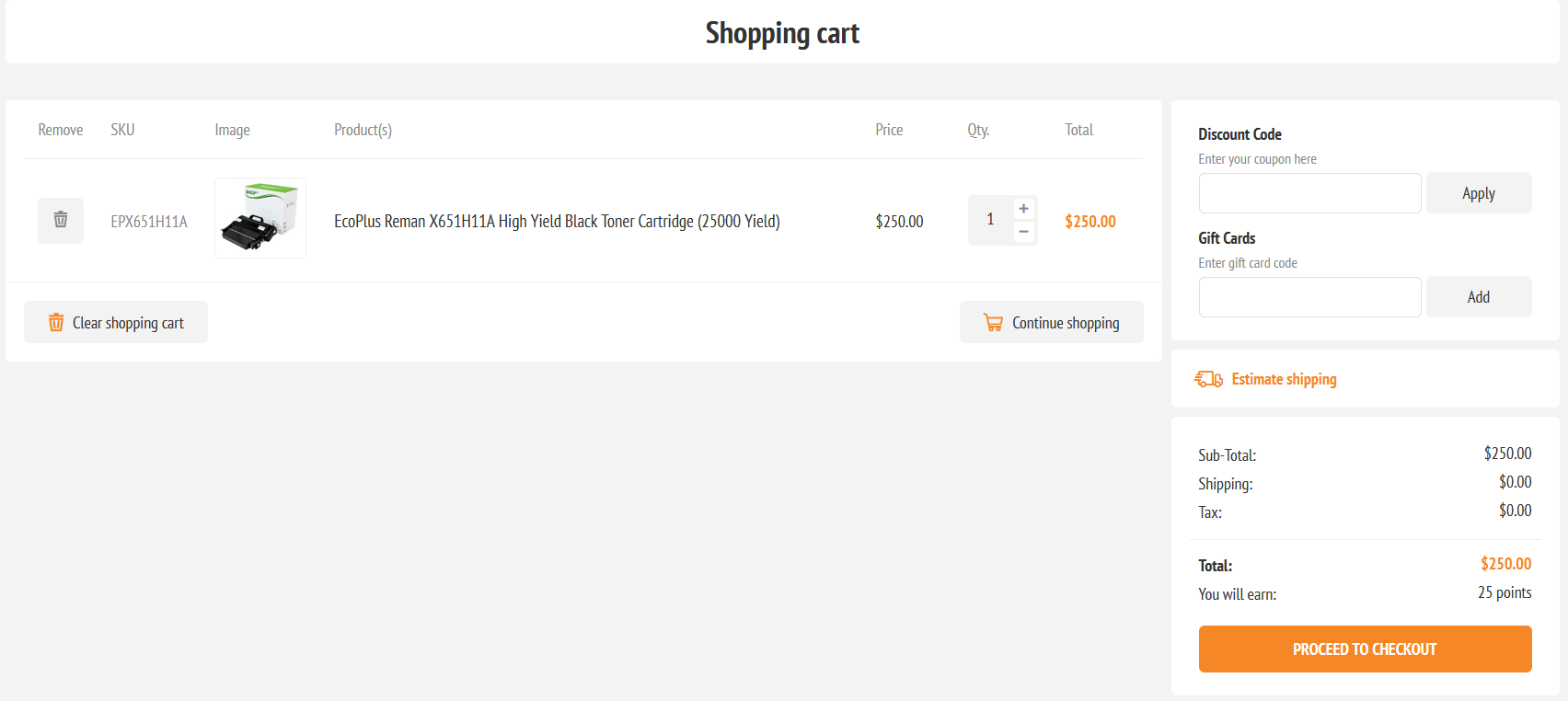
Customer shopping cart using the unit price approved in Advanced Quotes
9. Carry the approved price into checkoutCopy an accepted or store-approved quote to the assigned customer's cart. The cart displays the negotiated $250 unit price instead of returning to the original $365.95 catalog price.
nopCommerce order confirmation after checkout from an Advanced Quote
10. Complete checkout normallyThe customer finishes the standard nopCommerce checkout process and receives the normal order confirmation and order number.
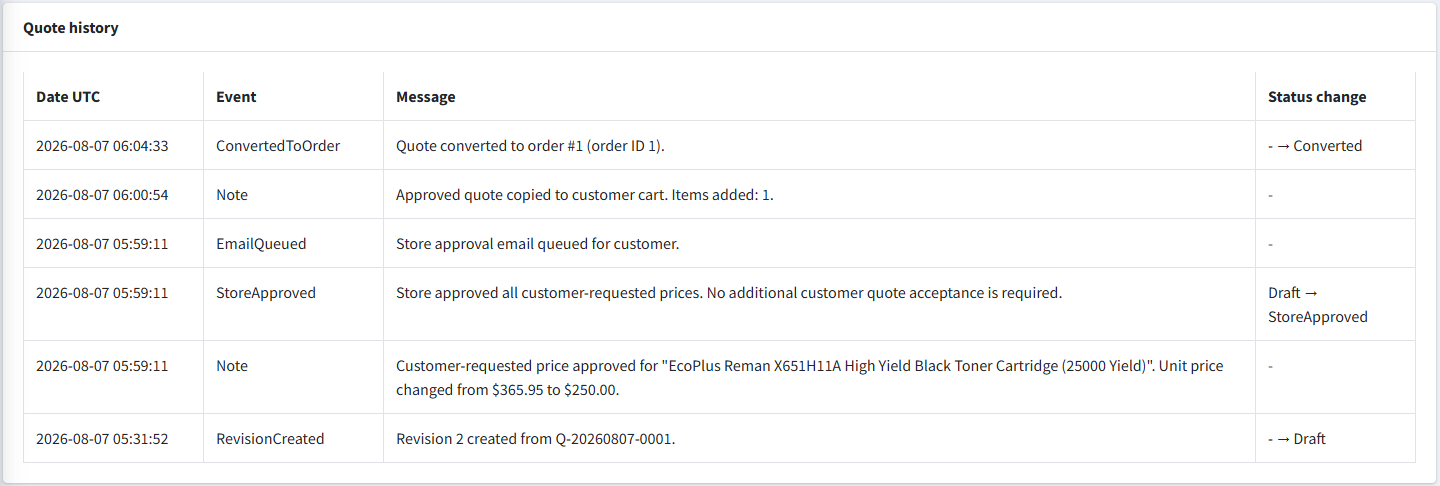
Advanced Quote history linked to the resulting nopCommerce order
11. Preserve the final quote-to-order recordWhen checkout completes, Advanced Quotes records the order ID, changes the quote to Converted, and adds a ConvertedToOrder history event. The exact quote revision and approved pricing remain traceable after the sale.

Everything needed to manage a commercial quote

Fast item entry and bulk editing

Search for products, add the essentials first, then edit quantities, requested prices, quoted unit prices, discounts, sort order, customer-facing notes, and private administrative notes. Select multiple items to save or delete them together.

Requested-price workflow

Keep the customer's requested price visible beside the quoted unit price. Staff can apply individual requested prices or apply all requested prices when appropriate.

Secure customer quote experience

Customers receive a secure quote page with products, totals, expiration, notes, approval, decline feedback, and printing. Registered customers can also review quotes from the My Quotes account menu.

Branded PDF quotations

Create polished multi-page PDF quotes using the active store's name and logo. Transparent logos are flattened onto white for clean output, and each PDF includes quote details, items, totals, notes, expiration, and page footers.

Price-preserved cart conversion

Copy an accepted quote to the assigned customer's shopping cart while preserving the approved quoted unit prices through checkout.

Revisions with an audit trail

Create R2, R3, and later revisions without changing the prior commercial record. Quote history tracks important actions, and the completed order remains permanently linked to the exact quote revision used.

Approval safeguards

If important pricing or commercial terms change after a quote is sent or approved, the quote returns to Draft, its public token is rotated, and customer approval is required again.

Email, expiration, and permissions

Send or resend quotes, use configurable message templates, automatically expire eligible quotes with a scheduled task, and control administrative access with nopCommerce permissions.

Designed for repeat B2B ordering

When eStoreware Quick Order Forms is installed, eligible quotes can be converted into reusable customer ordering forms. This is useful for negotiated supply lists, recurring purchases, approved product catalogs, and repeat office or facility orders.

Optional integration: Quick Order Forms is not required for the core quoting workflow. It is only needed for the Convert to Quick Order Form feature.

Key capabilities

  • Create and manage quotes in administration
  • Create quote requests from a shopping cart
  • Persistent request-received confirmation
  • Registered customer My Quotes area
  • Secure guest and customer quote access
  • Approve or decline with optional notes
  • Customer-requested pricing
  • Bulk item saving and deletion
  • Quote-level shipping, tax, and discounts
  • Customer-facing and private notes
  • Email and resend quote tools
  • Quote expiration scheduled task
  • Immutable numbered revisions
  • Commercial-change reapproval protection
  • Store-branded multi-page PDF quotes
  • Multi-store logo selection
  • Accepted-price cart conversion
  • Final quote-to-order linkage
  • Quote history and administrative permissions
  • Optional Quick Order Forms conversion

Requirements and installation

Requirements

  • nopCommerce 4.80
  • .NET 9 hosting environment
  • eStoreware Core, included in the upload package
  • Administrative access to install and configure plugins

Installation order

  1. Back up the website and database.
  2. Upload the supplied ZIP from Local plugins.
  3. Install or update eStoreware Core first.
  4. Restart when prompted.
  5. Install Advanced Quotes and configure it.

Upgrade note: Repair Setup is intended only for an older installation that missed a database migration or requires recovery. It is not part of a normal fresh installation.

Ideal for

Office supply dealers, ink and toner businesses, wholesalers, distributors, contract suppliers, equipment dealers, B2B ecommerce stores, and any nopCommerce business that negotiates pricing before checkout.

B2B quoting for nopCommerce

Turn shopping carts and customer requests into professional, trackable quotes.

eStoreware Advanced Quotes adds a complete quote workflow to nopCommerce—from the first customer request through pricing, approval, revisions, branded PDF delivery, cart conversion, and final order linkage.

nopCommerce 4.80 .NET 9 Registered and guest requests Multi-store branding
Advanced Quotes workflow from a shopping-cart quote request through pricing approval and conversion to a reusable Quick Order Form
Capture the pricing request once, complete the quote, and turn approved products into an easier repeat-order experience.

From a pricing request to a long-term customer ordering tool

Advanced Quotes connects the customer-facing request, your staff's pricing review, formal quote delivery, and future reordering in one traceable workflow. It eliminates the usual handoff between email, spreadsheets, disconnected PDFs, and manually recreated product lists.

Request special pricing
The customer expands the quote panel in the shopping cart, enters requested unit prices and item notes, and submits the complete cart for review.
Receive immediate confirmation
A confirmation page displays the quote number and next steps, so the customer knows the request and cart items were saved successfully.
Review and assign
The request appears in the Advanced Quotes dashboard. Staff can associate a guest request with a registered customer and retain the original request history.
Prepare the commercial quote
Staff reviews quantities, requested prices, quoted prices, discounts, notes, shipping, tax, expiration, and product details before sending.
Deliver and approve
The customer receives an email and secure quote page. The store can approve requested pricing directly, or the customer can approve or decline the completed quote.
Convert for the next purchase
An eligible quote can become a reusable Quick Order Form with the quoted products, selling prices, quantities, references, share link, QR code, and printable flyer.
Complete this purchase Copy an accepted quote to the customer's cart while preserving the approved unit prices through checkout and linking the final order to the quote revision.
Make future purchases easier Convert the quote to Quick Order Forms so the customer can return to the negotiated product list, adjust quantities, print it, share it, or add selected items to the cart.
The workflow in action

One connected process for customers, sales staff, and repeat orders

These screens show how Advanced Quotes carries the same request from the shopping cart into administration, preserves its history through revisions, and optionally turns the approved product list into a reusable Quick Order Form.
Shopping cart with the Advanced Quotes special-pricing request form
1. Request pricing from the cartThe customer can request a unit price for each product, include item-specific notes, and provide overall delivery or pricing instructions without rebuilding the cart in another form.
Quote request received confirmation with quote number and next steps
2. Give the customer immediate confirmationThe request-received page confirms that the products and requested pricing were saved, provides the quote number, explains what happens next, and links registered customers to My Quotes.
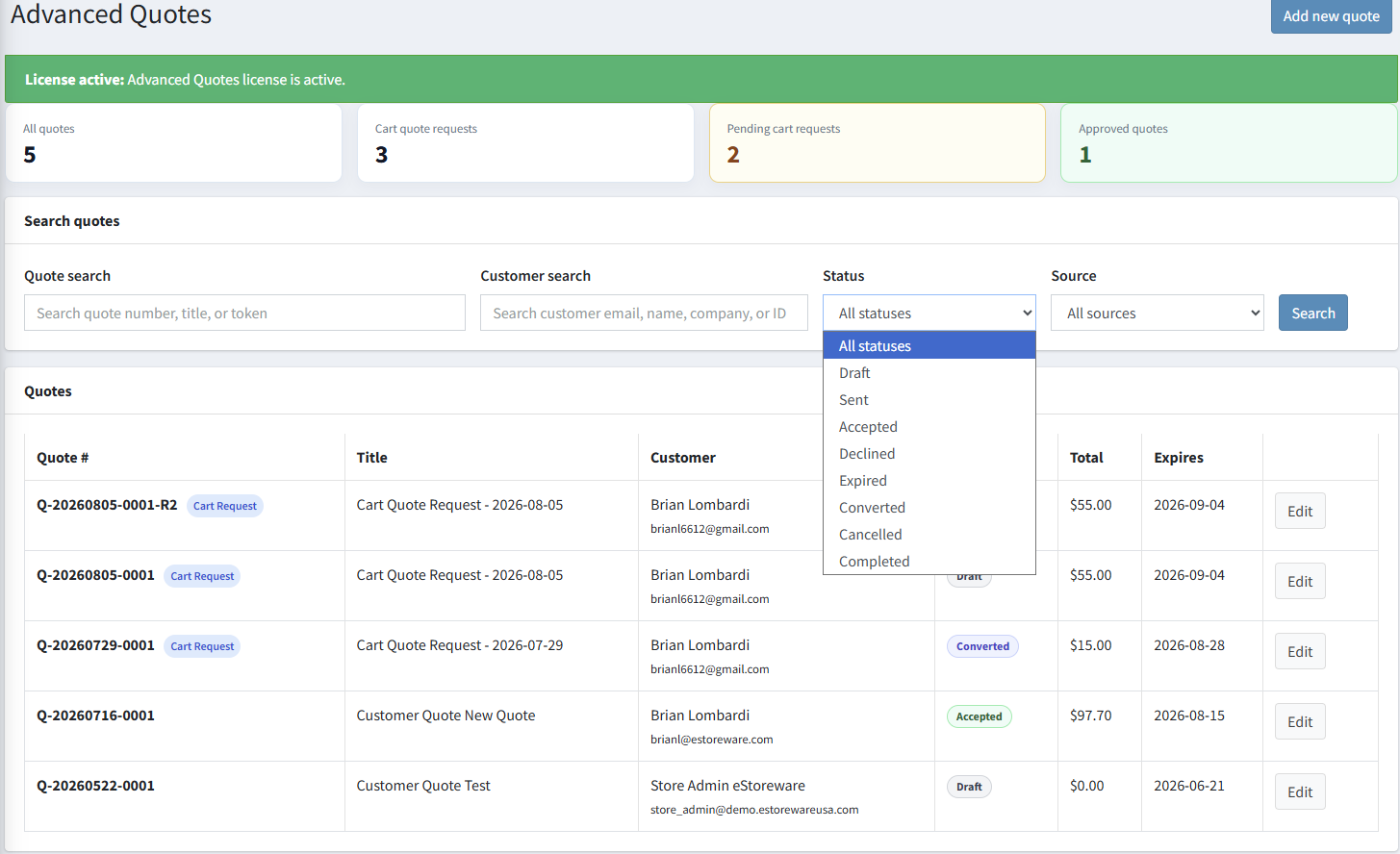
Advanced Quotes administration dashboard with summary counts and quote filters
3. Find and prioritize every requestDashboard totals separate all quotes, cart requests, pending requests, and approved quotes. Staff can search by quote or customer and filter by status or source.
Second revision of a cart quote request ready for customer approval
4. Revise without overwriting the original quoteCreate R2, R3, and later revisions when pricing or terms need to change. The previous quote remains an unchanged commercial record while the new revision returns to Draft for review.
Quote history recording creation of revision two
5. Keep a traceable quote historyImportant workflow events and status changes are recorded with UTC timestamps, including which quote was used to create each revision.
Quick Order Form created directly from an Advanced Quote
6. Convert the negotiated quote into a reusable formThe new Quick Order Form retains the customer, quote reference, products, and negotiated selling prices. Staff can enable the public share link, add instructions, and manage activity.
Quick Order Form item retaining the selling price approved in the quote
7. Preserve the approved product and priceConverted items retain the quote reference and selling-price override while adding repeat-order controls such as minimum quantity, case quantity, default quantity, sort order, and active status.
Advanced Quotes store settings and installation status checks
8. Configure the workflow by storeControl guest requests, account navigation, public links, approvals, printing, cart conversion, Quick Order Forms integration, widget placement, notification email, and default expiration. Setup Status confirms message templates, scheduled expiration, and integration availability.
Customer shopping cart using the unit price approved in Advanced Quotes
9. Carry the approved price into checkoutCopy an accepted or store-approved quote to the assigned customer's cart. The cart displays the negotiated $250 unit price instead of returning to the original $365.95 catalog price.
nopCommerce order confirmation after checkout from an Advanced Quote
10. Complete checkout normallyThe customer finishes the standard nopCommerce checkout process and receives the normal order confirmation and order number.
Advanced Quote history linked to the resulting nopCommerce order
11. Preserve the final quote-to-order recordWhen checkout completes, Advanced Quotes records the order ID, changes the quote to Converted, and adds a ConvertedToOrder history event. The exact quote revision and approved pricing remain traceable after the sale.

Everything needed to manage a commercial quote

Fast item entry and bulk editing

Search for products, add the essentials first, then edit quantities, requested prices, quoted unit prices, discounts, sort order, customer-facing notes, and private administrative notes. Select multiple items to save or delete them together.

Requested-price workflow

Keep the customer's requested price visible beside the quoted unit price. Staff can apply individual requested prices or apply all requested prices when appropriate.

Secure customer quote experience

Customers receive a secure quote page with products, totals, expiration, notes, approval, decline feedback, and printing. Registered customers can also review quotes from the My Quotes account menu.

Branded PDF quotations

Create polished multi-page PDF quotes using the active store's name and logo. Transparent logos are flattened onto white for clean output, and each PDF includes quote details, items, totals, notes, expiration, and page footers.

Price-preserved cart conversion

Copy an accepted quote to the assigned customer's shopping cart while preserving the approved quoted unit prices through checkout.

Revisions with an audit trail

Create R2, R3, and later revisions without changing the prior commercial record. Quote history tracks important actions, and the completed order remains permanently linked to the exact quote revision used.

Approval safeguards

If important pricing or commercial terms change after a quote is sent or approved, the quote returns to Draft, its public token is rotated, and customer approval is required again.

Email, expiration, and permissions

Send or resend quotes, use configurable message templates, automatically expire eligible quotes with a scheduled task, and control administrative access with nopCommerce permissions.

Designed for repeat B2B ordering

When eStoreware Quick Order Forms is installed, eligible quotes can be converted into reusable customer ordering forms. This is useful for negotiated supply lists, recurring purchases, approved product catalogs, and repeat office or facility orders.

Optional integration: Quick Order Forms is not required for the core quoting workflow. It is only needed for the Convert to Quick Order Form feature.

Key capabilities

  • Create and manage quotes in administration
  • Create quote requests from a shopping cart
  • Persistent request-received confirmation
  • Registered customer My Quotes area
  • Secure guest and customer quote access
  • Approve or decline with optional notes
  • Customer-requested pricing
  • Bulk item saving and deletion
  • Quote-level shipping, tax, and discounts
  • Customer-facing and private notes
  • Email and resend quote tools
  • Quote expiration scheduled task
  • Immutable numbered revisions
  • Commercial-change reapproval protection
  • Store-branded multi-page PDF quotes
  • Multi-store logo selection
  • Accepted-price cart conversion
  • Final quote-to-order linkage
  • Quote history and administrative permissions
  • Optional Quick Order Forms conversion

Requirements and installation

Requirements

  • nopCommerce 4.80
  • .NET 9 hosting environment
  • eStoreware Core, included in the upload package
  • Administrative access to install and configure plugins

Installation order

  1. Back up the website and database.
  2. Upload the supplied ZIP from Local plugins.
  3. Install or update eStoreware Core first.
  4. Restart when prompted.
  5. Install Advanced Quotes and configure it.

Upgrade note: Repair Setup is intended only for an older installation that missed a database migration or requires recovery. It is not part of a normal fresh installation.

Ideal for

Office supply dealers, ink and toner businesses, wholesalers, distributors, contract suppliers, equipment dealers, B2B ecommerce stores, and any nopCommerce business that negotiates pricing before checkout.